How to Use Verizon Messages
With Verizon Messages, keeping your conversations going has never been easier.
Let's go over some basic Verizon Messaging features to get you started.
Begin by tapping the Verizon Messages icon from any Home screen to open the app.
To send a text message, tap the pencil icon in the lower right hand corner of the screen.
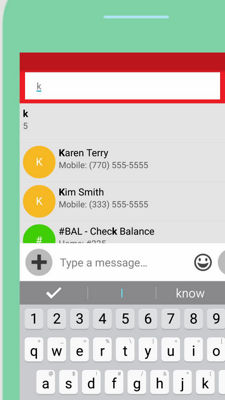
Start typing the name or number of the person you want to send the message to and you'll see matching contacts. Tap the one you want.
Addressing a message to more than one person will start a group conversation.
To write your message, tap in the message area and start typing.
When your message is complete, tap the Send button.
Responses to your text will be seen just below the message you sent.
To leave this conversation and see the list of all your conversations, tap the Back button.
When you get a new message from someone, their conversation jumps to the top of the list.
Tap the conversation to see the new message.
Then reply by tapping the text box and entering your message. When done, tap the Send button.
You can schedule a message to be sent at a later time or date by tapping the message you want to schedule. Type your message. Hold the Send button, scroll up to Later. Choose the time and date for your message to be sent and tap Schedule.
To add a picture to a message, simply tap the Plus button.
Then tap Gallery. You can attach pictures that are already on your phone, or take a new one to share.
Choose your photo and tap Done.
Tap the text box to add a message to go with your picture.
When your message is complete, tap the Send button.
In addition to adding pictures to your message, you can use the plus sign to attach a video, share your location through Glympse, give an eGift, create a postcard, add cool graphics from the Internet through media search, or send someone's contact information.
For added creativity, Verizon Messages lets you create a postcard or add personal touches to pictures using any combination of the collage, caption and sketch features.
You can create a collage with up to five pictures, pinch to resize and re-position, add captions and choose your fonts, or use your fingers to sketch right on the image.
You can also send an eGift card right from the app by choosing from over 30 merchants. Select your recipient, merchant, card art and amount you want to send, and even add a message for that personal touch. You can choose to have your eGift card billed to your Verizon account or billed directly to your credit card by adding your credit card information here.
Tap the menu icon in the top left corner of the conversation screen to get access to driving mode, auto-reply, settings, and to see what's new with Verizon Messages.
Tap to turn on or off Driving Mode. You can Auto-Reply to alert recipients that you're driving and will get back to them later. You can even sync it with your car's Bluetooth® through the setting menu so it automatically turns on or off.
Integrated Messaging lets you send and receive messages on your tablet and computer, in addition to your phone. Use the setting menu to manage this feature.
These are just a few of the ways Verizon Messages makes texting easy and fun.
To learn more about Verizon Messages, please visit verizonwireless.com/verizonmessages