Verizon Jetpack® 4G LTE Mobile Hotspot MiFi® 6620L - Restore Settings to Factory Defaults
If your Jetpack MiFi 6620L powers off, crashes/resets, freezes or runs slow, here's how to reset it.
Refer to the Admin Page Emulator for additional assistance restoring from web interface.
Restore Settings to Factory Defaults only if absolutely necessary as it:
- Removes all modified settings including Network Name (SSID), Wi-Fi/Admin Password, etc.
- Restores the default settings viewable on the external LED of the device.
- Ensure the device is powered on.
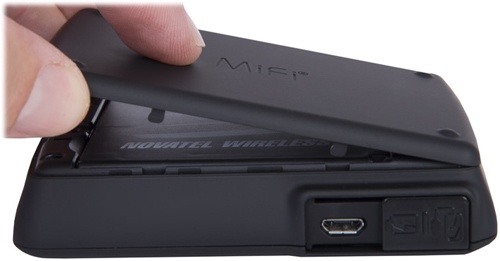
- Remove the battery cover from the bottom of the device.Utilizing the provided slot, carefully lift then detach the cover.
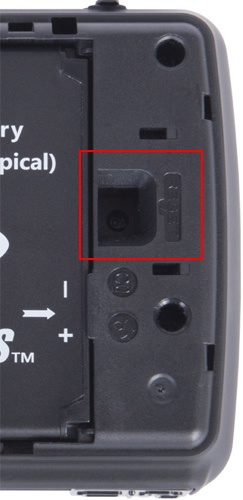
- Using a paperclip (or similar tool), press and hold theReset button(located down inside the square opening labled RESET) until "MiFi Restarting" or "MiFi Resetting" appears on the display, then release.
- Replace the battery cover.After restoring to factory defaults, ensure Power Management Settings are set to the preferred options.
Alternatively, a restore can also be done as follows:
- Access the Admin Web Interface.
- From the left menu, clickJetpack Settings.
- From the Jetpack tab, clickBackup and Restore.
- From the Restore to Factory Defaults section, clickRestore Factory Defaults.
- ClickConfirm.After restoring to factory defaults, ensure Power Management Settings are set to the preferred options.