Delete Temporary Internet Files and Cookies - Microsoft Edge
Here's how to delete temp files and cookies from your Edge browser.
- Some cookies contain customized preference and log on info for previously visited websites. Once deleted, the website may prompt for this info again.
- If your device is using Internet Explorer®, refer to Delete Temporary Internet Files and Cookies for further instruction.
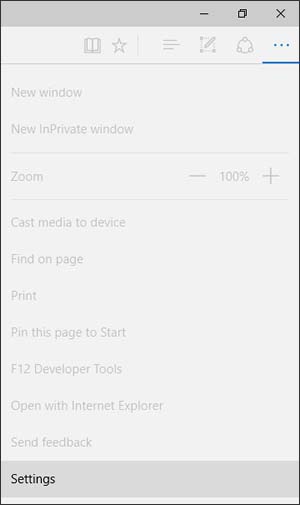
- From the Edge app, selectMore
(three horizontal dots located on the address bar in the upper-right).
Utilize the touchscreen (if available) or mouse to select the on-screen options. - SelectSettings.
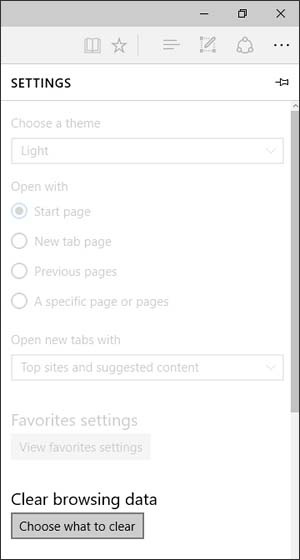
- From the Clear browsing data section, selectChoose what to clear.
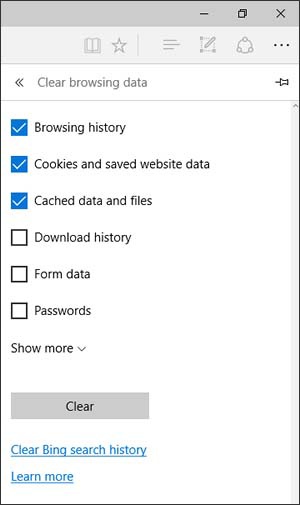
- Select (check) any of the following then selectClear:
- Browsing history
- List of websites you have visited.
- Cookies and saved website data
- Files or databases stored on your computer by websites to save preferences or improve website performance.
- Cached data and files
- Copies of webpages, images, and media that are saved for faster viewing.
- Tabs I've set aside or recently closed
- Webpages that have been saved for faster viewing.
- Download History
- List of files you have downloaded.
- Form data
- Saved information that you have typed into forms.
- Passwords
- Saved passwords that are automatically filled in when your sign in to a website you've previously visited.