Samsung Gear S3 frontier / Gear S3 classic - Activate / Set Up Device
Here's how to activate and setup your Gear S3 frontier / Gear S3 classic.
Set up your Gear S3 using one of the following device options:
- Set Up Using an Android™ smartphone
- Set Up Using an Apple® iPhone®
- Set Up as a Standalone Device
Set Up Using an Android Smartphone
- Ensure your Gear S3 has been set up as a Number Share device or as a standalone connected device.To set up with Number Share, the companion smartphone must be activated on the same Verizon account as the Gear S3.
- Before completing the steps below, verify:
- your companion Android smartphone has a cellular or wi-fi connection.
- you're in a Verizon coverage area.
- Ensure the Gear S3 is charged and powered on.If necessary, tap the display to begin.
- Install the Galaxy Wearable app
on your companion Android smartphone.
- Open theGalaxy Wearable app.
- TapGet Started.
- TapGear S3.If prompted, tapAllowto approve the necessary permissions.
- From the 'Devices spotted nearby' screen, tapGear S3.
- From the 'Connect to Gear S3' prompt, tapOK.
- Ensure the passkey matches what's displayed on the watch then tapOKon the smartphone and theCheckmark icon
on the Gear S3.
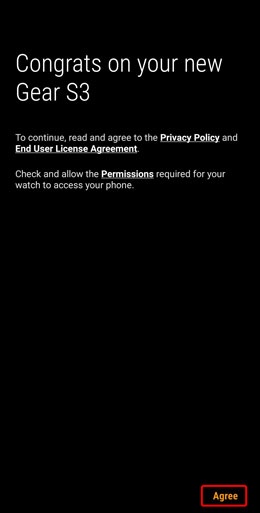
- Review the Privacy Policy and End User License Agreement on your smartphone then tapAgree.
- If using a non-Samsung Android smartphone to complete setup, when prompted with 'Allow Galaxy Watch PlugIn to...', tapALLOW.
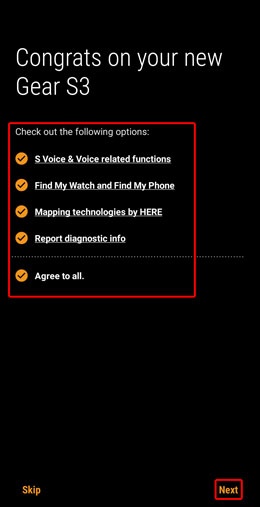
- Review (check) the Terms and conditions for each option then tapNext.You can agree to all or some of the services; however, accepting all the Samsung services improves your experience on the Gear S3.
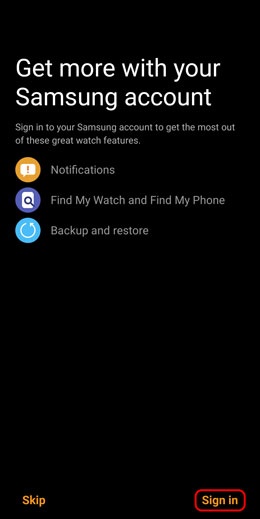
- If prompted, tapSIGN INto complete Samsung account setup.
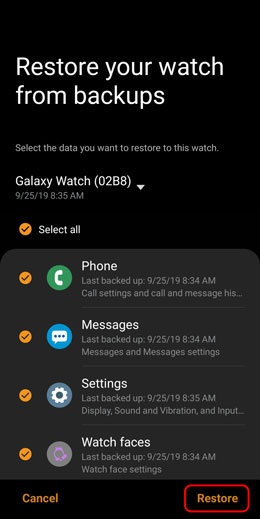
- If prompted, tapCheck for backupto retrieve a previous Samsung smart watch backup.If you prefer to set up as new, tapSkip for now.
- Select the data (e.g., Phone, Messages, etc.) you want to restore then tapRestore.Selected when a checkmark is present.If troubleshooting, don't restore the device until all testing has been completed.
- At the 'All done! Activation complete.' screen on the watch, tapOK.
Continue to use in conjunction with a companion smartphone for maximum functionality.
Set Up Using an Apple iPhone
- Ensure your Gear S3 has been set up as a Number Share device or as a standalone connected device.To set up with Number Share, the companion Apple Iphone must be activated on the same Verizon account as the Gear S3.
- Before completing the steps below, verify:
- your companion Apple Iphone has a cellular or wi-fi connection.
- you're in a Verizon coverage area.
- Ensure the Gear S3 is charged and powered on.If necessary, tap the display to begin.
- Install the Samsung Galaxy watch (Gear S) app
on the companion Apple iPhone.
- Open the Samsung Galaxy watch (Gear S) app.
- If prompted with 'Galaxy Watch would like to make data available to nearby bluetooth devices', tapOK.If necessary, tapSettingsthen tap theBluetooth switchto turn on
.
- TapSTART THE JOURNEY.
- TapGear S3 Frontier/Classic.If prompted, tapConnectto confirm bluetooth connection.
- From the 'Watches spotted nearby' screen, tapGear S3.
- From the bluetooth Pairing Request prompt, tapPairon the Iphone and theCheckmark icon
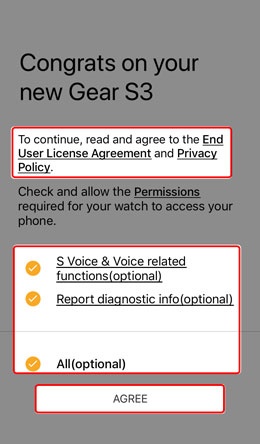
- Review the End User License Agreement and Privacy Policy, check the desired options (e.g., Bixby> and other voice services, Report diagnostic info) then tapAGREE.
- Tap 'Allow' or 'OK' to let Galaxy Watch send you notifications, access your calendar, or access your contacts.
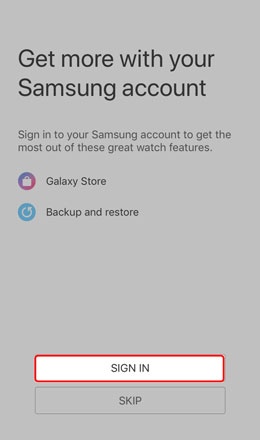
- TapSIGN INto complete Samsung account setup.
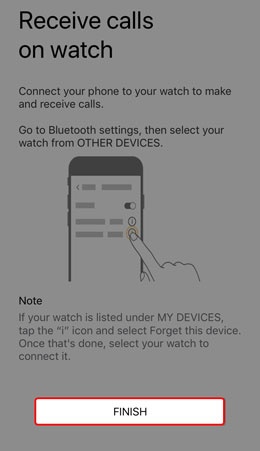
- TapFinish.
- At the 'All done! Activation complete.' screen on the watch, tapOK.
Continue to use in conjunction with a companion smartphone for maximum functionality.
Set Up in Standalone Mode
- The Gear S3 requires a companion phone for certain options (e.g., software updates, email, etc.).
- Standalone mode can't be used with Number Share or the stand alone connected device plan and provides limited functionality.Continue to use in conjunction with a companion phone for maximum functionality.
- Ensure the Gear S3 is charged and powered on.If necessary, tap the watch display to begin.
- From the 'Let's go' screen, swipe up.
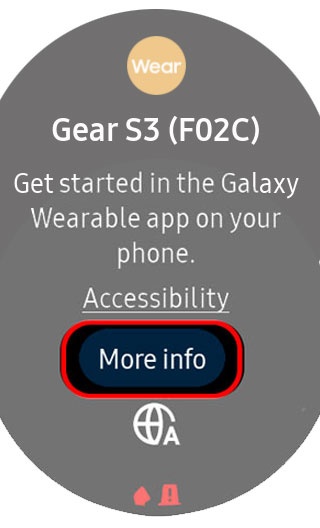
- TapMore Info.
- Scroll to the bottom, then taphere(underlined, in blue).
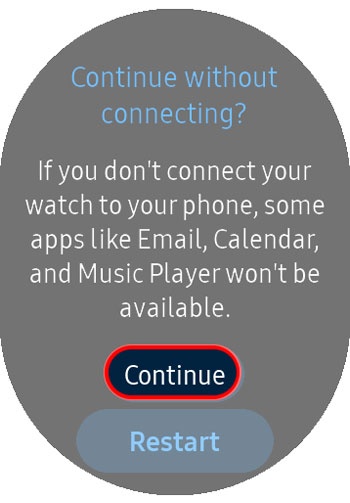
- Review the 'Continue without connecting' notice and chooseContinue.If you select Restart the watch will power off and on then return to the 'Let's go' screen.
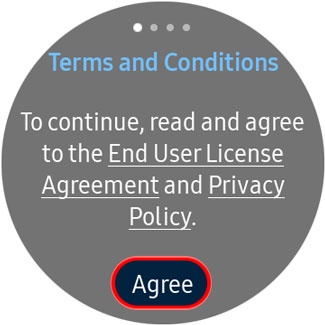
- Review the 'End User License Agreement' and 'Privacy Policy', tapAgree.
- Read and agree to the terms and conditions then tapNext.
- From the 'Samsung account' screen, tapNext.
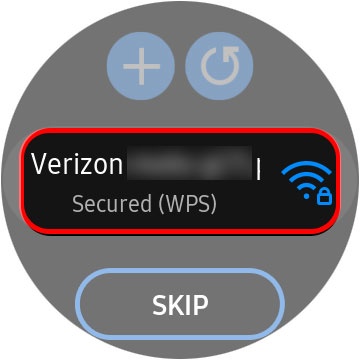
- Tap the desired wi-fi network.If necessary, tap theRefresh icon
to refresh the list of available wi-fi networks or the
Add iconto manually add a wi-fi network to the watch.
If you choose 'SKIP', you can add a wi-fi network after setup is complete. - From the 'Create PIN' screen, tapNext.
- Enter a 4-digit PIN then enter the 4-digit PIN again to confirm.
- At the 'All done! Activation complete.' screen, tapOK.