Change Network Name & Password - Verizon 5G Home
Learn how to change the Wi-Fi network name / password for the Verizon 5G Home router via My Verizon. Follow these steps to change your network name / password.
5G Home Internet service is currently offered in specific areas; click here to check for 5G coverage availability.
You must manually reconnect each Wi-Fi device (e.g., tablets, gaming systems, smart TVs, etc.) after changing Wi-Fi info.
- This process is only available to Account Owners / Managers.
- Router Wi-Fi settings can also be managed via the My Verizon app.
- Navigate: .
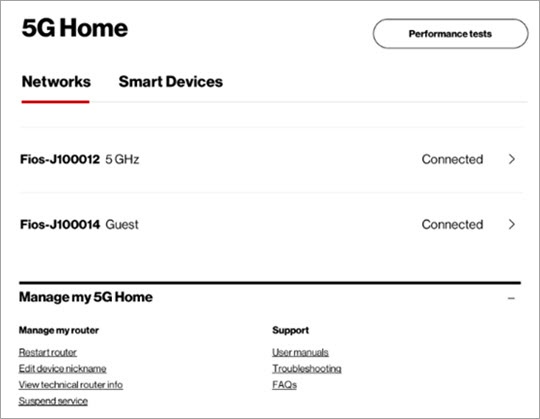
- ClickManagefor your 5G Home Internet router.
- From the Networks section, click a Wi-Fi network.
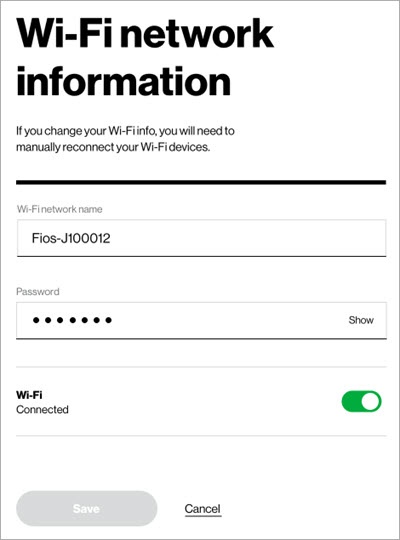
- From the Wi-Fi network info screen, enter the preferred Wi-Fi network name (SSID) and password then clickSave.Passwords must have at least 8 characters.
- Read the popup info then clickConfirm.
- ClickSave.It may take a several minutes before you're able to connect with the new info.