Samsung Galaxy Watch - Display Settings
Here's how to adjust display options (e.g., brightness, screen timeout, font, etc.) on your Galaxy Watch.
From your Android™ smartphone or Apple® iPhone®, ensure your Galaxy Watch software is up to date as the steps below apply to the most recent version.
Brightness
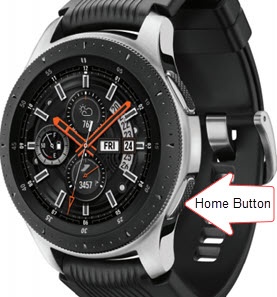
- From the watch screen, press theHome buttonto open the apps screen.
- TapSettings
.
- TapDisplay.
- TapBrightness.
- Turn the bezel to adjust the brightness to the preferred level.
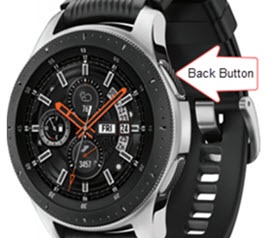
- Press theBack button
- TapAuto low brightnessthen turn on
or off
as desired.
Screen Timeout
- From the watch screen, press theHome buttonto open the apps screen.
- TapSettings
- TapDisplay.
- TapScreen timeout.
- Tap the preferred screen timeout:
- 10 seconds
- 15 seconds
- 30 seconds
- 1 minute
- 5 minutes
Background Style
- From the watch screen, press theHome buttonto open the apps screen.
- TapSettings
- TapDisplay.
- TapBackground style.
- Turn the bezel to scroll to, then tap the desired background style.
Font
- From the watch screen, press theHome buttonto open the apps screen.
- TapSettings
- TapDisplay.
- TapFont.
- TapFont style.
- Turn the bezel to scroll to, then tap the desired font style.
- TapFont size.
- Turn the bezel to scroll to, then tap the desired font size.