Samsung SmartThings Tracker - Track Device
Here's how to track your SmartThings Tracker.
Change View
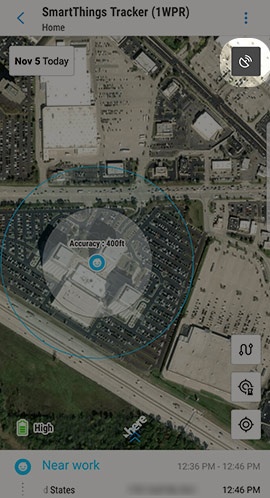
This process allows you to switch between satellite view and map view.
- Open the SmartThings app
.
- From the SmartThings Home screen, select your tracker.
- TapSatellite icon
(upper-right) on map to switch view.
Travel Path
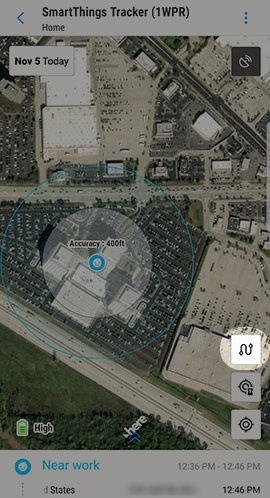
This process shows the tracker's travel path throughout the day.
- Open the SmartThings app
- From the SmartThings Home screen, select your tracker.
- Tap theTravel Path icon
(lower-right).
- View Tracker's Path.
Live Tracking
- Update the location of your tracker every minute for 10 minutes.
- Live tracking turns off automatically after 10 minutes.
- From your device, tap theSmartThings app
- From the SmartThings Home screen, tap select your tracker.
- Select your SmartThings Tracker device.
- Tap theLive Tracking icon
(lower-right).
Tracker Location
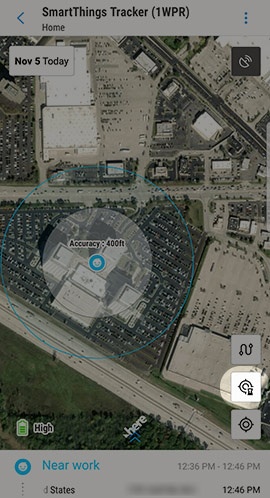
This process shows the current location of your Tracker.
- Open the SmartThings app
- From the SmartThings Home screen, select your tracker device.
- TapTracker Location icon
(lower-right).
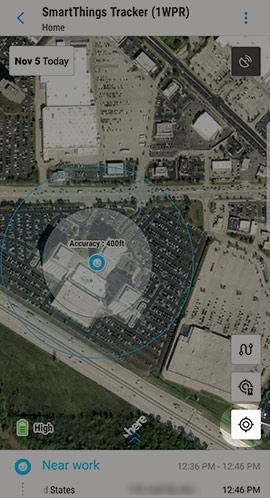
Track by Date
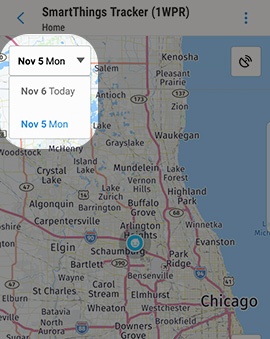
View the tracker's path by date.
- Open the SmartThings app
- From the SmartThings Home screen, select your tracker.
- Tap on theDate drop down(upper-left).
- Select the preferred date.