Samsung Galaxy Watch Active2 - Manage Data Usage
Here's how to change the data usage cycle on your Galaxy Watch Active2, view data usage and set data limits.
To change the data usage cycle on your watch, view data usage and set data limits, view this info.
- From your Android™ smartphone or Apple® iPhone® , ensure your Galaxy Watch Active2 software is up to date as the steps below apply to the most recent version.
- Data usage info provided by the watch may differ from actual usage. For data usage info provided by Verizon, call #DATA (#3282) from the watch or refer to the My Verizon website.
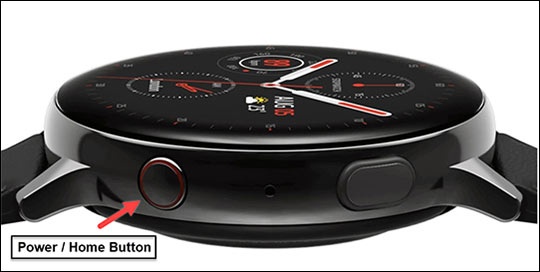
- From the watch screen, press theHome buttonto open the apps screen.
- Navigate:.SettingsConnectionsData usage
- Do any of the following:
- View Data Usage:
- TapUsagedetails.
- View App usage.
- Change Data Usage Cycle:
- TapData usage cyclethen select one of the following timeframes:
- Monthly
- Weekly
- Daily
- TapStart date.Refer to the My Verizon website for billing cycle date.
- Select the appropriate date then tapDone.
- Set Mobile Data Limit:Mobile / Cellular data is disabled upon reaching the specified data limit. To continue to use apps that require a data connection (e.g., Browser, Email, etc.), a Wi-Fi connection can be used or the data limit must be manually adjusted (overage charges may apply).
- TapData limitto turn on
.
If prompted, review the notification then tap theCheckmark iconto confirm. - Select the desired level (e.g., 2.0 GB, etc.) then tapDone.