One Talk Portal - Configure Voicemail to Email
Here's how to configure the Voice Mail to Email feature via the One Talk portal.
Refer to the One Talk admin portal simulator for interactive demonstrations.
The Voicemail to Email feature allows you to send audio recordings of your voicemail messages to an email address.
Admins can configure Voicemail to Email using one of the following methods:
Manage Lines and Devices
- Sign in to My Business.
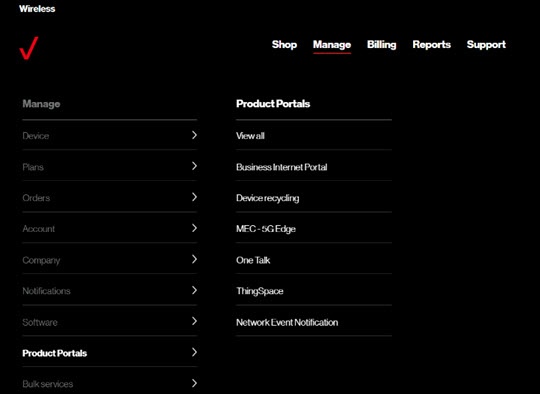
- ClickManage(top of screen).
- Mouse overProduct Portalsthen clickOne Talk.If necessary, clickView all.
- From the 'I want to' section, clickManage lines and devices.
- If necessary, select the desired group from the dropdown menu then click theDevices tab.
- Click the desired phone number in the left column.
- Click theUser features tab.
- Click theVoice Mail to Email switch(lower-right) to turn on
or off
.
The Voicemail to Email feature is off by default. - Enter the email address(es) that will receive the audio files then clickSubmit.
User Features
- Sign in to My Business.
- ClickManage(top of screen).
- Mouse overProduct Portalsthen clickOne Talk.If necessary, clickView all.
- From the 'I want to' section, navigate: .