5G Home Internet - Activate Amazon Alexa via My Verizon App
Here's how to activate Amazon Alexa for your 5G Home Internet in the My Verizon app.
- Ensure your app is up to date as the following steps apply to the most recent version.If you're not able to access the My Verizon app, you can also visit the My Verizon website to manage your account.
- Available settings vary based on user type (e.g., Account Owner, Account Manager, Account Member).
- The steps below apply to the K2 Mesh Wi-Fi Extender only.
- Open theMy Verizon app
.
- Tap theAccount tab(at the bottom).If prompted, enter your password, fingerprint or Face ID.
- If necessary, tap the 'Home' or '5G Home' tab (at the top).Depending on your account services, the tabs displayed may vary.
- TapManage 5G Home.
- TapNetwork settings.
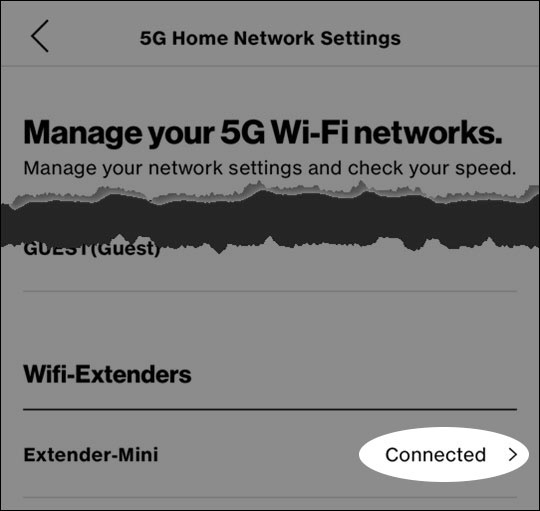
- From the 'Wifi-Extenders' section, tapConnectedto the right of the appropriate device.May require scrolling.
- TapConnect Alexa.You'll need your Amazon® account info to set up your Amazon® Alexa®. If you don't have an existing Amazon account, you can sign up for one on Amazon.com.
- From the 'Connect Alexa' screen, tapGet Started.
- From the '5G Home Alexa Setup' screen, a list of extenders that are Alexa capable is displayed. TapSign in to Alexanext to a device to enable Alexa.
- Enter your Amazon username and password and tapSign in.
- Once logged in, you are successfully linked to Amazon and have Alexa enabled on the selected device. TapDoneto complete the setup.
- Repeat steps 8-10 to enable other Alexa-compatible devices on the list.