Inseego Business Phone Connect - Activate / Set Up Device
Here's how to activate and set up your Business Phone Connect.
Electrical equipment can cause interference with Home Phone Connect. Avoid placing Business Phone Connect near other electrical equipment such as a refrigerator, television or microwave oven.
- Business Phone Connect comes with the SIM card installed.
- If you're transferring your business number you can't make or receive calls on the Business Phone Connect until the transfer process is completed. The transfer process can take 2-10 business days. Check the status of your transfer by visiting verizonwireless.com/port or by calling (877) 567-4899.
- Insert the three included AA batteries.
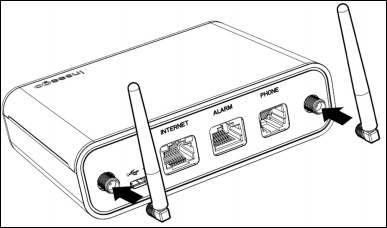
- If needed, attach the antenna.Business Phone Connect works without it in a normal environment. You can choose to install the external antenna if you're planning to put this device where signal might be weak, like in a basement.
- Connect the power adapter to the device then plug it into an AC power outlet.
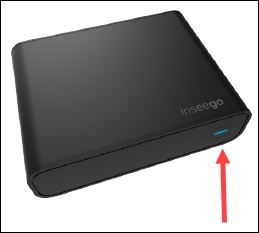
- Press thePower buttonon the front of the Business Phone Connect to turn the device on.The power indicator turns blue when device is turned on.
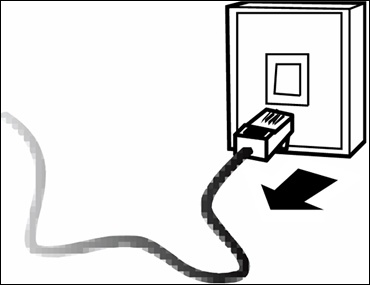
- Unplug your phone or fax from the wall jack.
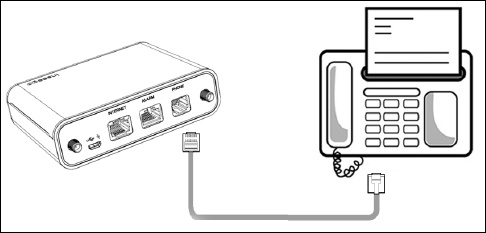
- Connect the telephone to the device.Don't plug the Business Phone Connect into the telephone wall jack.
- Place a call to start using the service.You may need to use the three-digit area code when dialing local and long distance numbers.