Samsung Galaxy Watch3 - Manage Data Usage
Here's how to change the data usage cycle, view data usage and set data limits on your Galaxy Watch3.
- From your Android™ or Apple® iPhone®, ensure your Galaxy Watch3 software is up to date as the steps below apply to the most recent version.
- Data usage info provided by the watch may differ from actual usage. For data usage info provided by Verizon, call #DATA (#3282) from the watch or refer to the My Verizon Website.
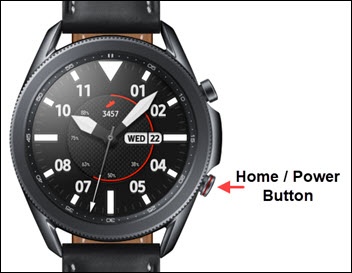
- From the watch screen, press theHome buttonto open the apps screen.
- Navigate:.SettingsConnectionsMobile networks
- TapData usagethen do any of the following:
- View Data Usage:
- TapUsagedetails
- View App usage.
- Change Data Usage Cycle:
- TapData usage cyclethen select one of the following timeframes:
- Monthly
- Weekly
- Daily
- TapStart dateRefer to the My Verizon Website for billing cycle date.
- Select the appropriate date then tapDone.
- Set Mobile Data Limit:Wi-Fi connection can be used or the data limit must be manually adjusted (overage charges may apply).
- TapData limitto turn on
.
If prompted, review the notification then tap theCheckmark iconto confirm. - Select the desired level (e.g., 2.0 GB, etc.) then tapDone.