Verizon 5G Internet Gateway (LVSKIHP) - Configure Broadcast Settings
Here's how to change the Wi-Fi broadcast settings for the 5G Internet Gateway (LVSKIHP).
The 5G Internet Gateway incorporates Self-Optimizing Network (SON) functionality. Only one network name (SSID) displays and connected devices are automatically managed to provide the best available conditions on the network.
This content is for the 5G Internet Gateway (LVSKIHP). Refer to How to Identify Verizon 5G Home Equipment if you need to verify the model you're using.
- Sign in to the Admin WebGUI.
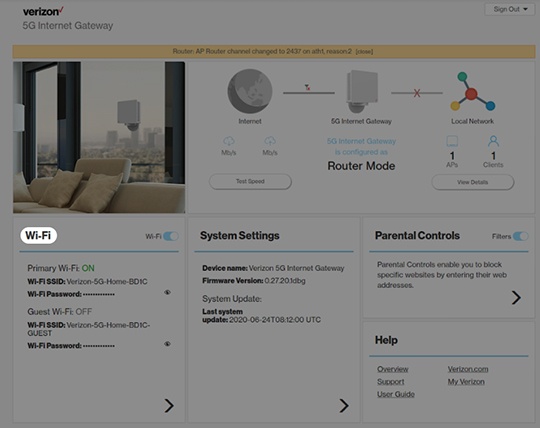
- From the Router Home screen, clickWi-Fi.
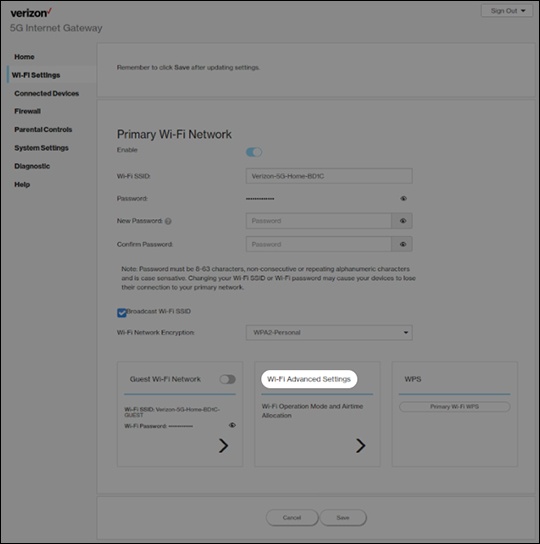
- From Wi-Fi Settings, clickWi-Fi Advanced Settings.
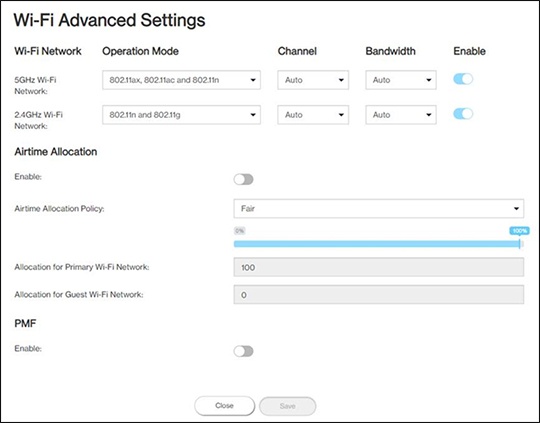
- From Wi-Fi Settings, view or click theDropdown iconto modify any of the following broadcast settings:Based on the Primary Wi-Fi option selected, channel options vary.Not all devices support all Wi-Fi standards. If any devices don't display the Wi-Fi network name, try changing the Operation Mode.Auto (default setting) is recommended.
- Operation Mode (5GHz)
- 802.11n only
- 802.11ac and 802.11n
- 802.11ax, 802.11ac and 802.11n
- Operation Mode (2.4GHz)
- 802.11n and 802.11g
- 802.11ax, 802.11n and 802.11g
- Channel (5GHz - Auto, 149, 153, 157, 161, 165)
- Channel (2.4GHz - Auto, 1-11)
- Bandwidth (5GHz - Auto, 20MHz, 40MHz)
- Bandwidth (2.4GHz - Auto, 20MHz, 40MHz, 80MHz)
- If desired, click theEnable switchnext to the appropriate Wi-Fi frequency band (5GHz or 2.4GHZ) to turn on
or off
.
It's recommended to keep both the 5GHz and 2.4GHz bands enabled in order to avoid impacting speed, range, or the number of devices that can be connected at one time. - ClickSave(at the bottom).