Fossil Gen 5 LTE Smartwatch - Activate / Set Up Device
Here's how to quickly set up your Fossil Gen 5 LTE Smartwatch.
- The Fossil Gen 5 LTE Smartwatch can be set up via Number Share.To set up with Number Share, the companion smartphone must be activated on the same Verizon account as the Fossil Gen 5 LTE Smartwatch.
- Before completing the steps below, verify:
- your companion Android™ smartphone has a cellular or Wi-Fi connection.
- you're in a Verizon coverage area.
- your eSim activation has been processed.
- Connect your watch to the included charger then power it on.
- Tap the watch display to begin setup.
- Tap the desired language (e.g., English, French, etc.).If prompted, agree to the Terms of Use.
- Open theWear OS by Google appon your Android smartphone.If necessary, install the app using the Google Play™ Store.
- TapStart Setup.
- To continue, review the Terms of service then tapAgree(lower-right).
- To send diagnostic reports and usage stats to Google, tapI agree.If you don't want to share this info, tapNo thanks.
- From the 'Link with Wear OS by Google' screen, tap the name of your Fossil Gen 5 LTE Smartwatch (i.e. Carlyle HR).If your watch doesn't display, tapI don't see my watch.
- Ensure the Passkey matches what displays on your Fossil Gen 5 LTE Smartwatch then tapPair.If you're having trouble pairing, try the following steps:
- Restart both devices (smartphone and watch).
- Check your Bluetooth® connection.
- Unpair your devices and try again.
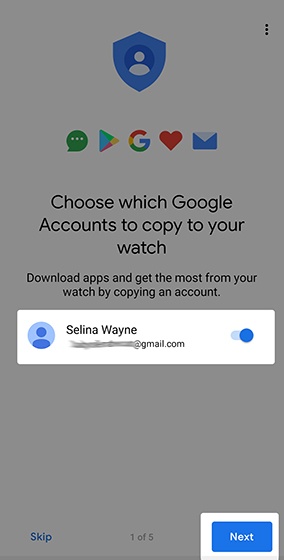
- To copy a Google account to your watch, tap the desired Google email account to turn on
then tap
Next. - To confirm, tapCopy.If prompted, enter device screen lock (pattern, PIN, etc.).
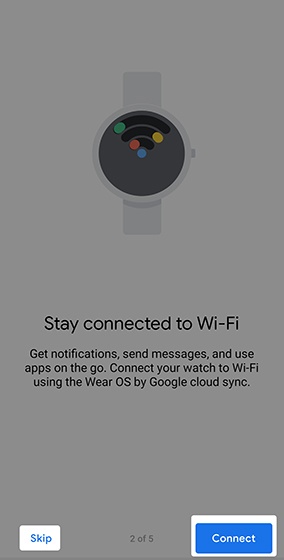
- From the 'Stay connected to Wi-Fi' screen, tap 'Connect' or tap 'Skip' to bypass this option.
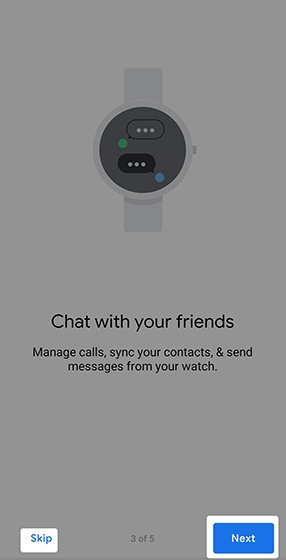
- From the 'Chat with your friends' screen, tap 'Next' or tap 'Skip' to bypass the option.If prompted, tapAllowto approve the necessary permissions.
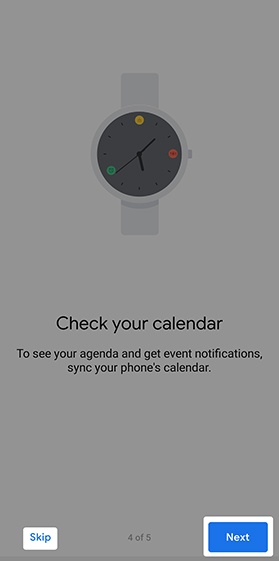
- From the 'Check your calendar' screen, tap 'Next' or tap 'Skip' to bypass this option.If prompted, tapAllowto approve the necessary permissions.
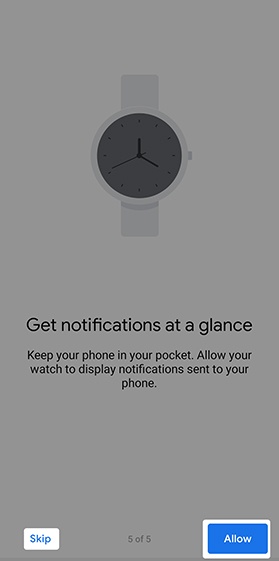
- From the 'Get notifications' screen, tap 'Allow' or tap 'Skip' to bypass this option.If prompted, tapAllowto approve the necessary permissions.
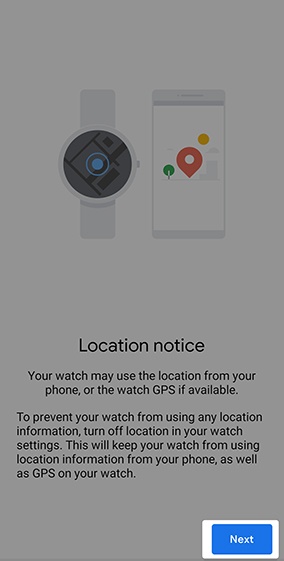
- From the 'Location notice' screen, read the disclaimer then tapNext.
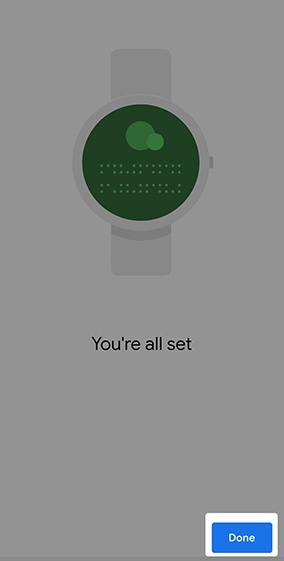
- From the 'You're all set' screen, tapDone.
- Using your watch, tapLearn moreto walk through helpful hints.
- To connect your watch to the Verizon network, do the following:
- If necessary, open theWear OS by Google appon your smartphone.
- From the 'Connect to Verizon network' prompt, tapSet up.
- To confirm, tapSet up.
- From the 'Almost ready' screen, tapClose.
- Restart your watch to connect to the mobile network.After the restart, your Fossil Gen 5 LTE Smartwatch is connected and set up is complete.