TCL TAB FAMILY EDITION - Activate / Set Up Device
Here's how to quickly set up your TCL TAB FAMILY EDITION.
To activate the device on prepaid service, refer to Set up Verizon Prepaid Service.
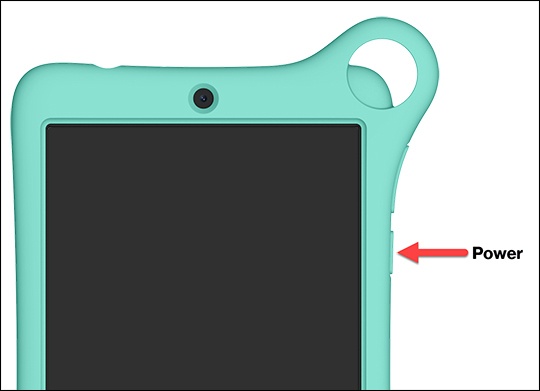
- If powered off, press and hold thePower buttonthen release when the TCL logo appears on the screen.
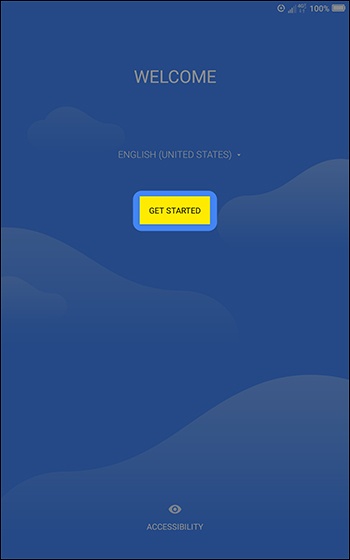
- Select the appropriate language then tapGET STARTED.
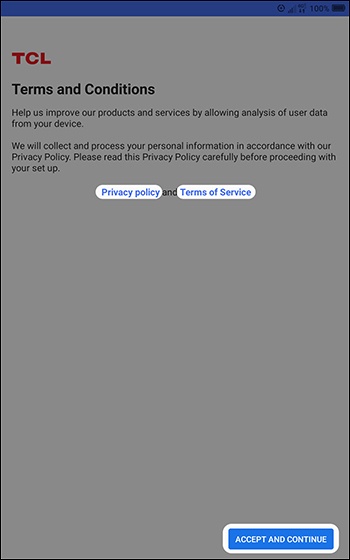
- To continue, review the Terms and Conditions then tapACCEPT AND CONTINUE.To review the Privacy policy or Terms of Service documents, tap the appropriate link.
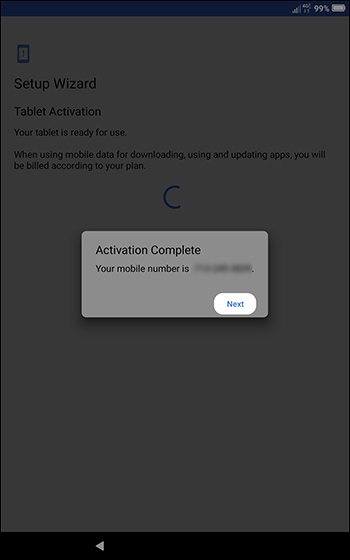
- From the 'Tablet Activation' screen, tapNext.If prompted, enter the account PIN then follow the on-screen prompts (see Account PIN FAQs for additional info).If activating a new tablet on an existing phone number, ensure the old device is powered off.
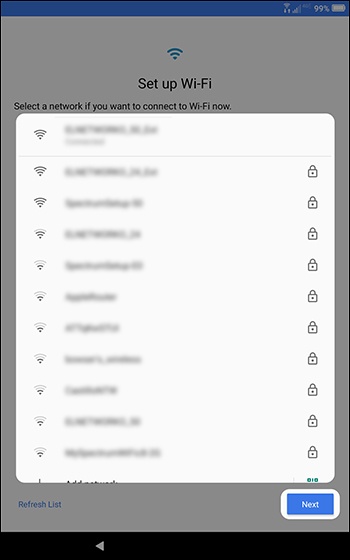
- From the 'Set up Wi-Fi' screen, select a network and enter the password, tapCONNECTthen tapNext.TapSkipto add Wi-Fi networks after setup is complete.
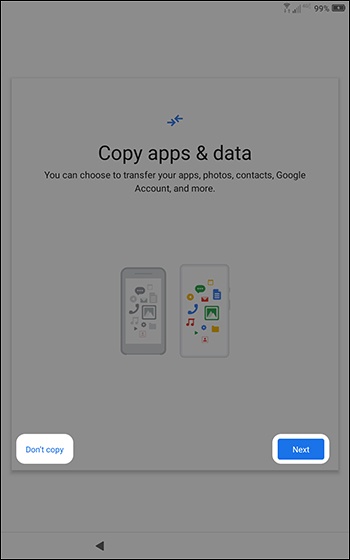
- From the 'Copy apps & data' screen, tapNextthen follow the on-screen prompts.If you'd like a fresh start, tapDon't copy.If troubleshooting, don't restore the device until all testing has been completed.
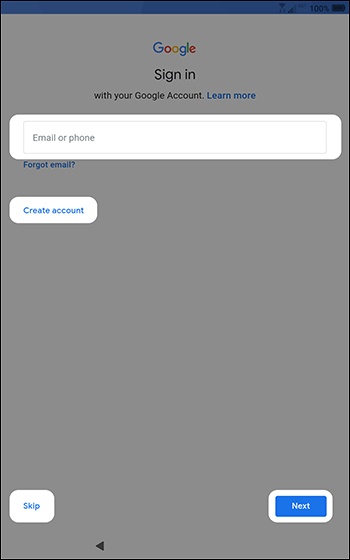
- Sign in to your existing Google™ account or create a new one.TapSkipto add a Google account after setup is complete. Skip to step 9.
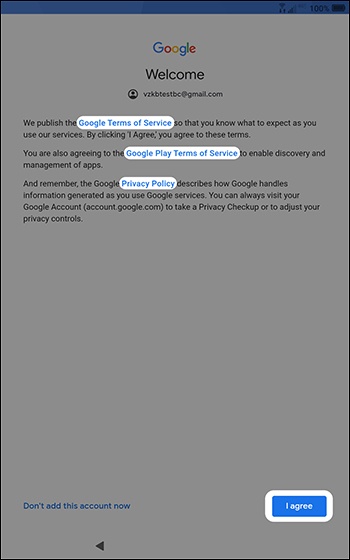
- From the Google 'Welcome' screen, tapI agreeto continue.To view the Terms of Service and Privacy Policy documents, tap the appropriate link.
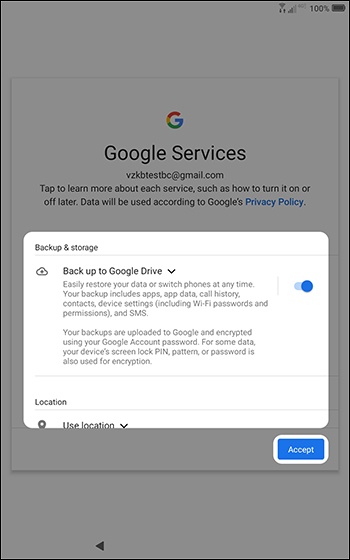
- From the 'Google services' screen, select any of the following switches to turn on
or off
then tap
Accept:If necessary, tapMoreto review additional services.- Back up to Google DriveThis option doesn't appear if a Google account wasn't added in step 7.
- Use location
- Allow scanning
- Send usage and diagnostic data
- From the 'Protect your tablet' screen, enter a 4-digit PIN then tapNext.TapScreen lock optionsfor additional options.
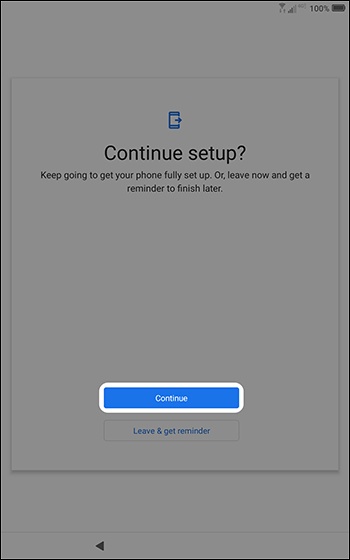
- From the 'Continue setup?' screen, tapContinue.If a Google account wasn't added in step 7, skip to step 17.
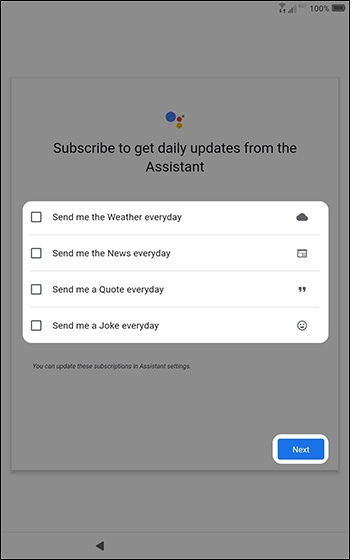
- From the Google Assistant options screen, check the preferred boxes then tapNext.
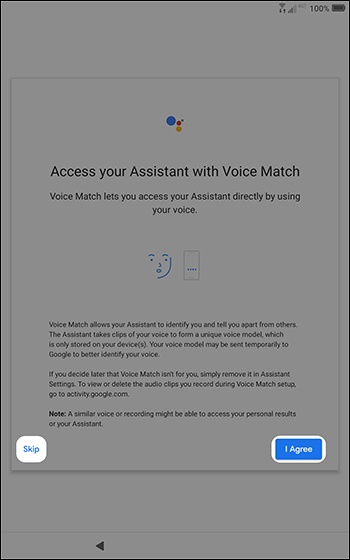
- From the Voice Match screen, review the info then tapI Agree.TapSkipif you don't want to set up Voice Match.
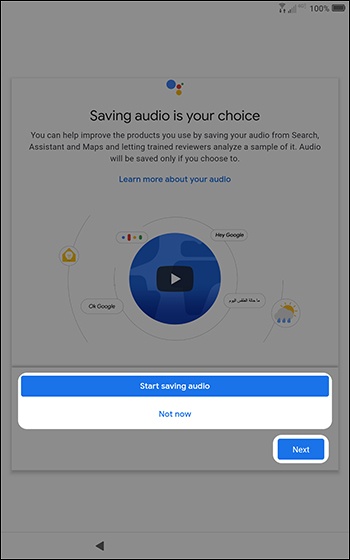
- Review the info, select 'Start saving audio' or 'Not now' then tapNext.
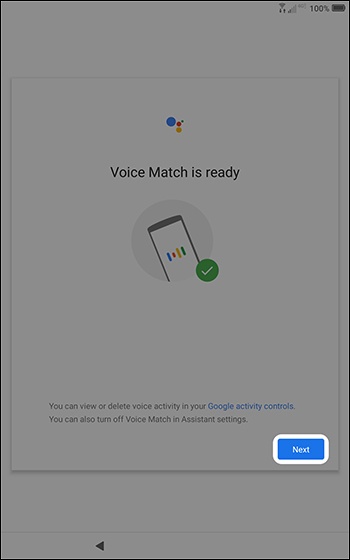
- From the 'Voice Match is ready' screen, view the info then tapNext.
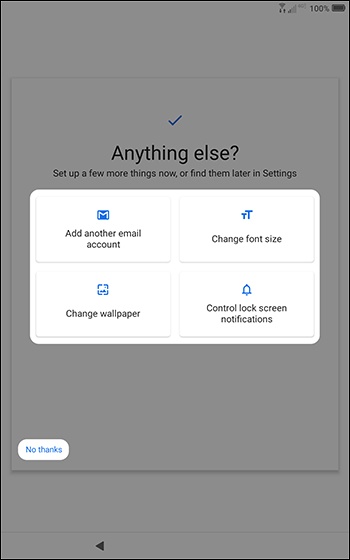
- From the 'Anything else?' screen, select any additional setup options then follow the on-screen instructions or tapNo thanksto exit setup.
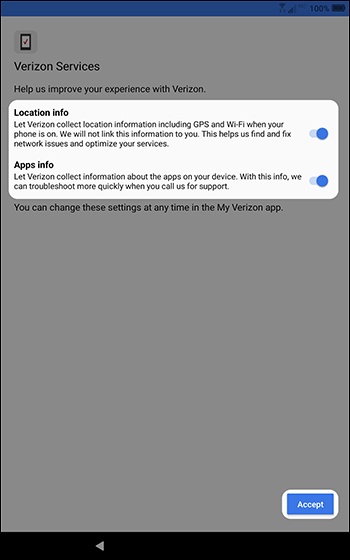
- From the 'Verizon Services' screen, select any of the options to turn onAccept.
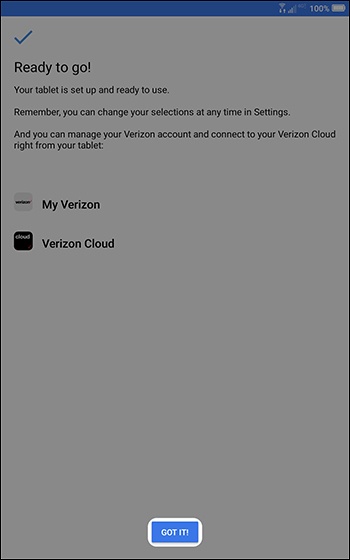
- From the 'Ready to go' screen, tapGOT IT!