Nokia 8 V 5G UW - Activate / Set Up Device
Here's how to quickly set up your Nokia 8 V 5G UW.
To activate the device on prepaid service, refer to Set up Verizon Prepaid Service.
- If powered off, press and hold thePower buttonuntil the Powered by android appears then release.
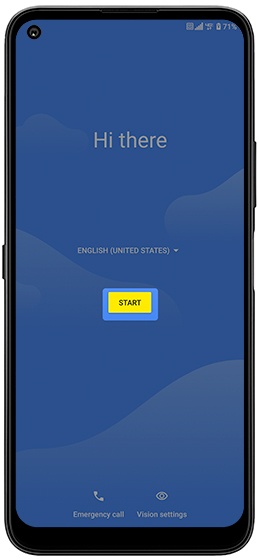
- Select the appropriate language then tapSTART.
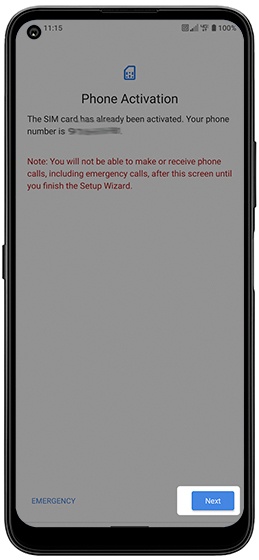
- If presented with the 'Phone Activation' screen, tapNext.If prompted, enter the account PIN then follow the onscreen prompts (see Account PIN FAQs for additional info).If activating a new phone, ensure the old phone is powered off.
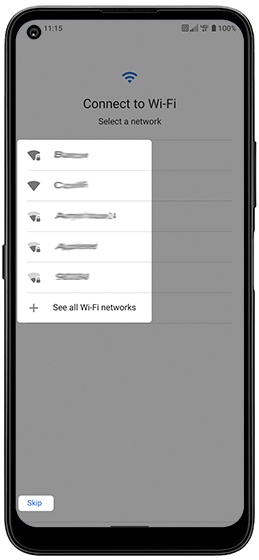
- From the 'Connect to Wi-Fi' screen, select a network then enter the password.TapSkipto add Wi-Fi networks after setup is complete.
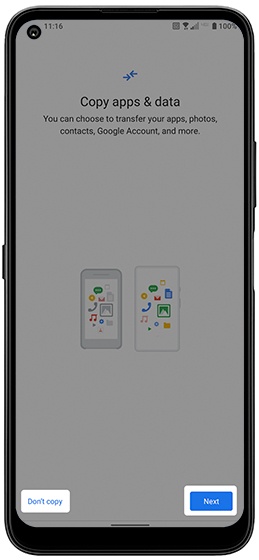
- If you'd like to restore your info from an old device tapNext.If you'd like a fresh start tapDon't copy.
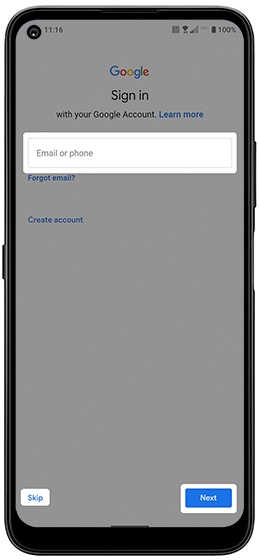
- Sign in to your existing Google™ account or create a new one.TapSkipto add your Google account after setup is complete.
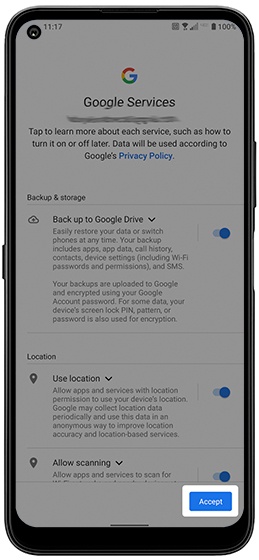
- From the 'Google services' screen, tap any of the switches to turn on
or off
then tap
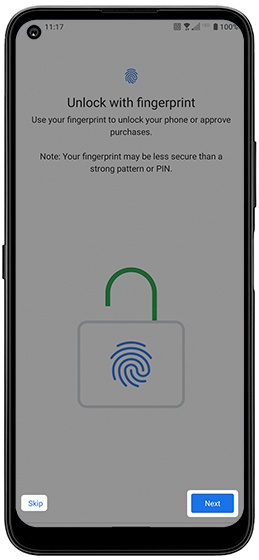
Accept(may require scrolling to the bottom). - From the 'Unlock with fingerprint' screen, tapNextthen follow the steps to setup a fingerprint to unlock your device.TapSkipto set up fingerprint recognition after setup is complete.
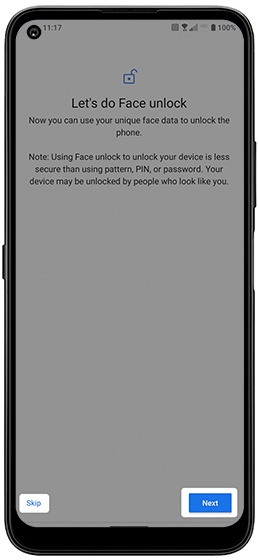
- From the 'Let's do Face unlock' screen, tapNextthen follow the steps to setup face recognition to unlock your device.TapSkipto set up face recognition after setup is complete.
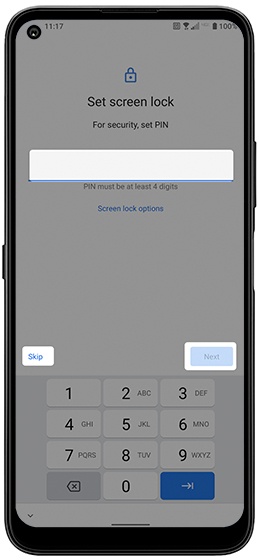
- From the 'Set screen lock' screen, enter lock code then tapNext.TapSkipto set up a screen lock after setup is complete.
- From the 'Subscribe to get daily...' screen, choose any of the options then tapNext.Option selected when box is checked.
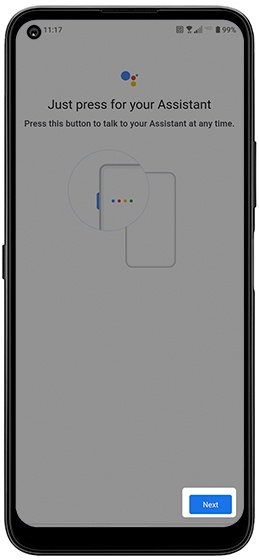
- From the 'Just press for your Assistant' screen, read the disclaimer then tapNext.
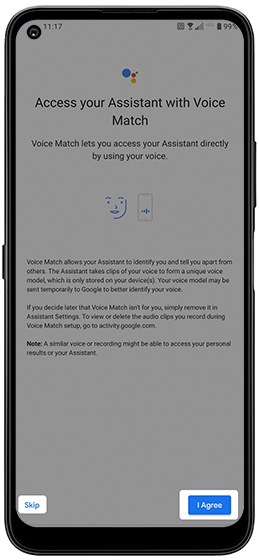
- From the 'Access your Assistant with Voice Match' screen, read the disclaimer then tapI Agree.TapSkipto set up voice match at any time through the Assistant button.
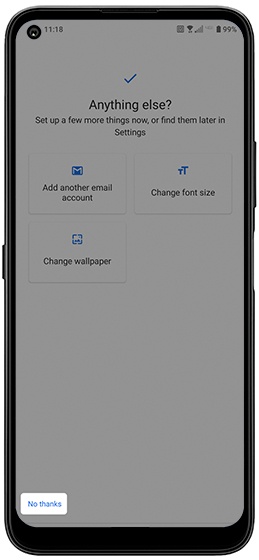
- From the 'Anything else?' screen, tap any of the options to set up.TapNo thanksto continue set up.
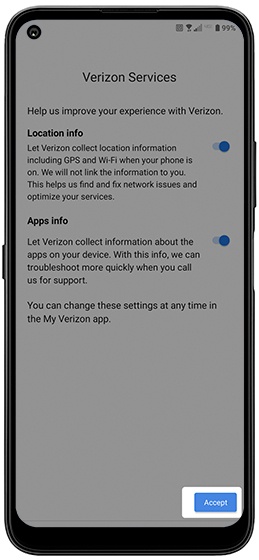
- From the 'Verizon Services' screen, tap theswitchto turn on
or off
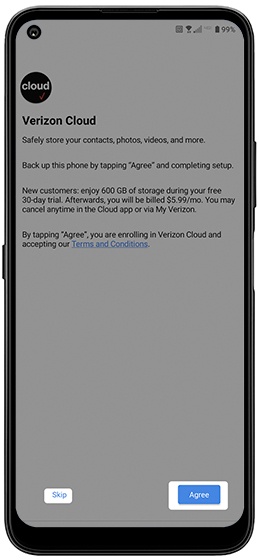
Accept. - Review the info from the 'Verizon Cloud' screen then tapAgree.TapSkipto set up Verizon Cloud after setup is complete.
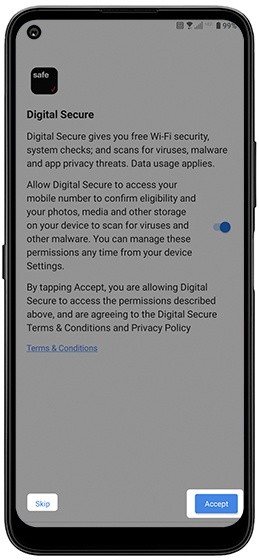
- From the 'Digital Secure' screen, review the info, tap theswitchto turn onAccept.TapSkipto set up Digital Secure (through the app) after setup is complete.
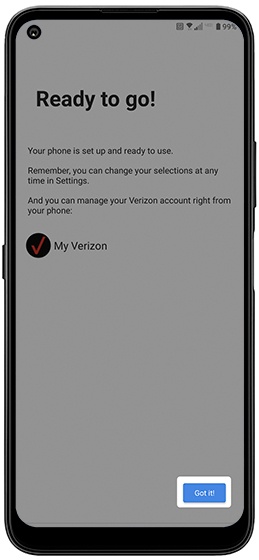
- From the 'Ready to go!' screen, tapGot it!to complete setup.