One Talk Portal - View / Manage Call Queue
Here's how to manage the Call Queue feature via My Verizon for Business.
Refer to the One Talk admin portal simulator for interactive demos.
- A One Talk Call Queue line allows you to direct incoming calls to a maximum of 40 assigned agents. If all agents are busy, additional callers are placed in queue for the next available agent. One Talk offers two different price options for Call Queue:
- Standard (Maximum queue size: 10)
- Large (Maximum queue size: 25)
- Your company's One Talk admin can configure the purchased Call Queue lines.
- Only One Talk users with the Call Queue feature on their One Talk line can be added to a call queue.
- Sign in to My Business.
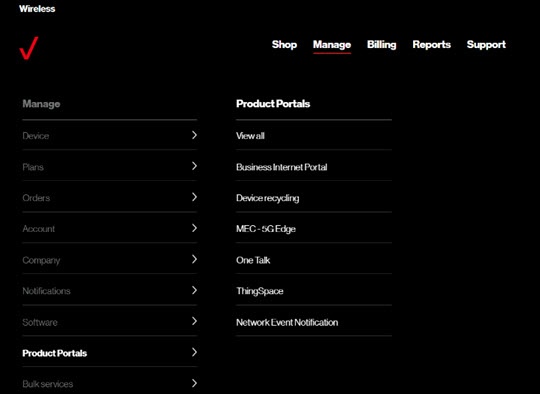
- ClickManage(top of screen).
- Mouse overProduct Portalsthen clickOne Talk.If necessary, clickView all.
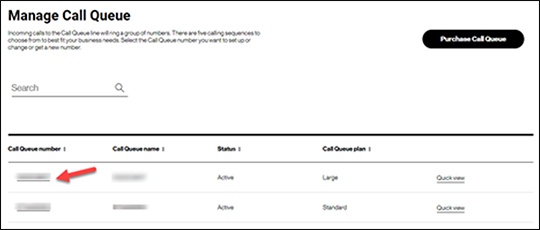
- From the 'Call Queue' section, click theDetails arrow
.
- Click the appropriate linked phone number.
- ClickEdit.
- Enter the desired values for Call Queue name and Calling ID name.
- Select the desired calling sequence:
- Simultaneous: Incoming calls ring all selected numbers at the same time.
- Circular: Incoming calls ring the lines in sequence, starting with the number after the last line in the group that answered a call. Each line is called one time, regardless of where in the sequence the call starts.
- Regular: Incoming calls ring each line in the group starting with the first line and continuing through each line until the call is answered, all lines have been attempted one time, or a predetermined amount of time has passed.
- Uniform: Incoming calls ring each line in the group, starting with the line that has been idle for the longest period of time and continuing through each line until the call is answered or a predetermined amount of time has passed.
- Weighted: Incoming calls ring the lines in the group based on pre-configured weight assignmentsWeighting assignments must total 100%.
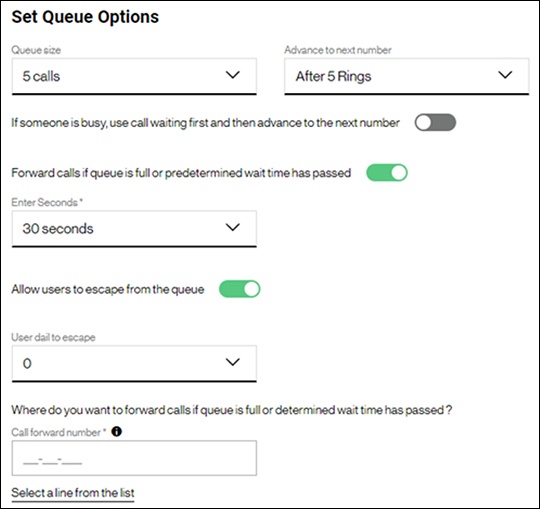
- Configure Queue Options as desired:
- Queue sizeEven though your company will have purchased a maximum queue size of 10 or 25 calls, the admin can further adjust the maximum size of the queue here.
- Advance to next numberSpecifies the number of times the line rings before advancing the caller to the next agent in the queue.
- If someone is busy, use call waiting first and then advance to the next numberIf enabled, calls can route to an agent who is already on another call, which could extend the caller's wait time.Click the switch to turn on
or off
.
- Forward calls if queue is full or predetermined wait time has passedClick the switch to turn on or off.Allow callers to be forwarded out of the queue after a certain amount of time on hold.
- The following fields only appear if the call forwarding option is turned on:
- Enter seconds (time limit)Maximum time limit is 600 seconds (10 minutes).
- Allow users to escape from the queueClick the switch to turn on or off.
- User dial to escapeOnly appears if the above option is turned on.Specifies the key users can press to opt out of waiting in the queue.
- Call forward numberSpecifies the number to which you want callers to be forwarded if the queue is full, the wait time limit has elapsed, or the caller opted out of waiting.
- Selected linesAdd, delete or rearrange agents in the queue.
- Configure Queue Greetings as desired.
- ClickSave(upper-right) to apply changes.
Queue Greetings
Configure greeting options as desired: 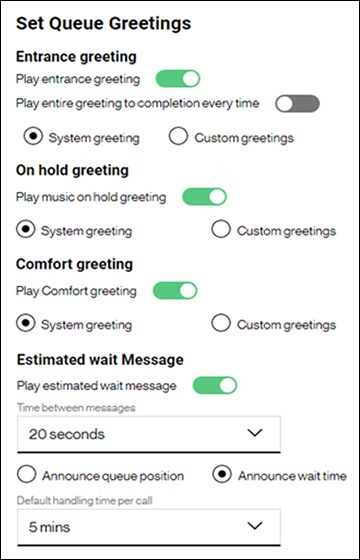
- Click thePlay entrance greeting switchto turn onCallers hear a greeting after their call connects.
- ClickPlay entire greeting to completion every timeto turn on or off.If turned off, the greeting is only played if the caller is put into queue due to all agents being busy.If turned on, all callers hear the entrance greeting before connecting to an available agent.
- Select 'System greeting' or 'Custom greetings'.If 'Custom greetings' is selected, you can upload an audio file which meets the following criteria:
- .WAV file type
- CITT, u-law, or a-law codec
- 8.000 kHz (sampling rate/frequency)
- 8-bit mono
- 2MB or less total size (7 minutes or shorter)
Alternatively, you can use other programs and applications such as G711.org to format existing Digital Rights Management (DRM) free audio files to the correct specifications. - Click theOn hold greeting switchto turn on or off.If turned on, callers hear the specified message(s) while waiting to connect.
- Select 'System greeting' or 'Custom greetings'.
- Click theComfort greeting switchto turn on or off.
- Select 'System greeting' or 'Custom greetings'.
- Click theEstimated wait message switchto turn on or off.If on, the following options appear:
- Select the desired value from theTime between messages dropdown menu(10, 15 or 20 seconds).
- Select 'Announce queue position' or 'Announce wait time' to play the appropriate message at intervals while holding.
- Select the desired value from theDefault handling time per call dropdown menuto assist in calculating wait time.
To avoid message interruption / clipping, keep the following in mind:
- Each greeting type plays its messages in sequence over a span of 10 seconds, then moves to the next type:
- Entrance greeting(s)
- On Hold message(s)
- Comfort message(s)
- Wait time / Queue position (if enabled)
- Repeat 2-4 on a 30-second loop until hold time limit is reached.
- We recommend:
- using only one message per greeting type.
- keeping hold messages short (10 seconds or less) when using comfort and/or wait messages.
- If all messages for one greeting type add up to more than 10 seconds, the messages are clipped when the next message type plays.
- If all messages for one greeting type add up to less than 10 seconds, there will be silence until the next message type plays.