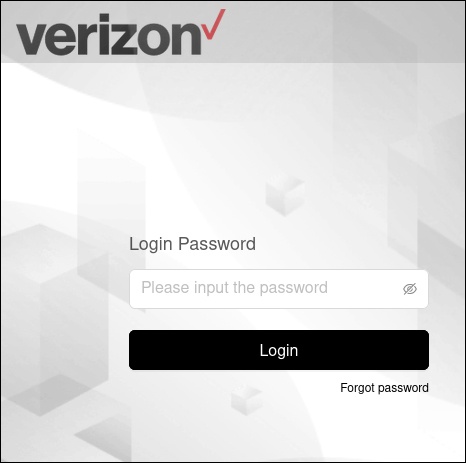
Airspeed Mobile Hotspot - Access Admin Page
Here's how to navigate to the admin page for your Airspeed Mobile Hotspot.
The admin page is used to customize the device settings and manage the device password for your Airspeed Mobile Hotspot.
If the admin password is forgotten and isn't viewable on the device, a hard reset can be performed. A hard reset removes ALL modified settings (e.g., Network Name (SSID), Wi-Fi / admin password, etc.) and restores default settings viewable on the external LED of the device.
- Establish a Wi-Fi network connection with a device (e.g., computer, smartphone, tablet, etc.).Wi-Fi name and password can be viewed via the external display.If connecting to a computer, select the appropriate operating system for help connecting to Wi-Fi:
- From the device that's connected to the Airspeed Mobile Hotspot, open a web browser, typehttp://my.mobilehotspotinto the URL address field then pressEnter.Alternatively, type192.168.1.1into the URL / address bar.
- Enter the admin password then clickLog In.The default password is the same as the Wi-Fi password.You can view the Admin Password via the external LED of your device.