Verizon Internet Gateway - Configure IP Passthrough / Bridge Mode
Here's how to configure IP passthrough settings to use the Internet Gateway with other networking equipment (router, switch, etc.).
- IP passthrough allows you to connect your own network equipment (router, switch, etc.) to the Verizon Internet Gateway.
- Upon enabling IP passthrough:
- All Wi-Fi radios are automatically disabled (and re-enabled upon disabling IP passthrough).
- IP passthrough functions are enabled on the LAN2 Ethernet port on the bottom of the router.
- internet access is no longer available through Wi-Fi or the LAN1 Ethernet port.
- Access the router admin page then clickAdvanced(top).Refer to Access Admin Page for assistance.
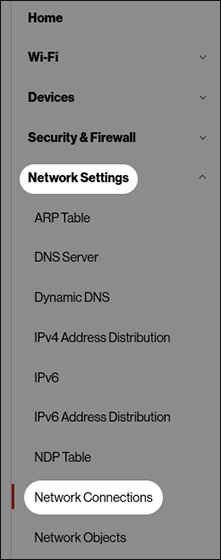
- From the left menu, click .
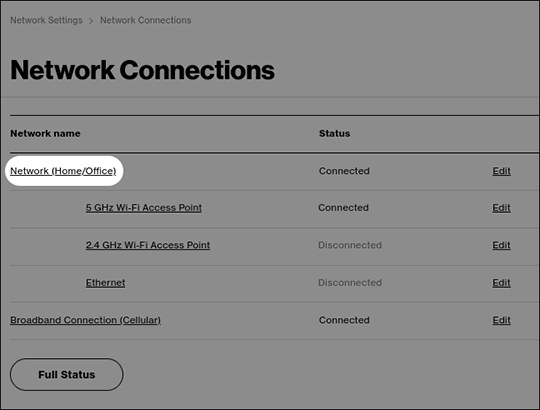
- From the 'Network Connections' section, clickNetwork (Home/Office).
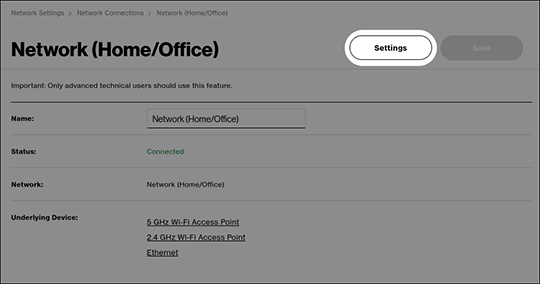
- From the top of the 'Network (Home/Office)' section, clickSettings(upper-left).
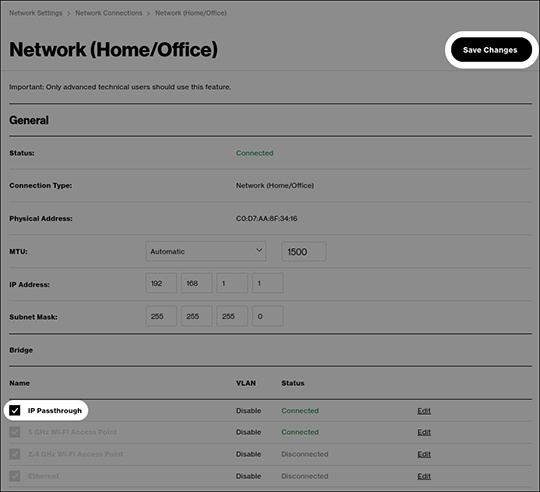
- From the 'Bridge' section, click the 'IP Passthrough' checkbox then clickSave Changes.
- Wait 1-2 mins for the router to reboot.
- When the device has returned to normal operation (displays a solid white LED), plug your own network equipment (router, switch, etc.) into the LAN2 port via Ethernet on the bottom of the router.Enabling IP passthrough causes the IP address assigned by the network to hand off to the device connected to the LAN2 port.To disable IP passthrough:
- Connect a device to the LAN1 Ethernet port.
- Sign in to the Admin Web UI.
- Repeat steps 2-5 above to uncheck the IP passthrough.