Orbic Chromebook - Adjust Brightness / Display Settings
Here's how to adjust screen brightness and other display settings (e.g., Screen saver, Sleep, Display size, etc.) for your Orbic Chromebook.
Follow these steps to adjust brightness settings and display / font settings for your Orbic® Chromebook®.
Adjust Brightness Settings
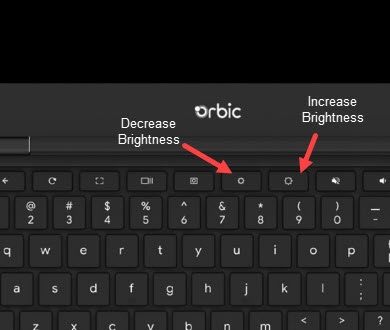
- From the keyboard, press either the Decrease Brightness button or the Increase Brightness button until the desired brightness is achieved.
Adjust Display / Font Settings
- Navigate:.LauncherSettings
- From the Device section, clickDisplays.
- From the Built-in display section, drag theDisplay size sliderleft or right to achieve the desired font size.
- Click theOrientation dropdown icon
then select one of the following:
- 0° (Default)
- 90°
- 180°
- 270°
- ClickNight Lightto turn on
or off
.
- Drag theColor Temperature sliderleft or right to achieve the desired nighttime color.Night Light must be turned on for this to be accessible.
- To choose when Night Light is on, tap theSchedule dropdown iconthen select one of the following:
- Never
- Sunset to Sunrise
- Custom