One Talk T5xW Series IP Desk Phones & T67LTE 4G LTE Desk Phone - Call Recording via USB Storage
Here's how to record call audio to a USB flash drive using your T5xW series IP desk phone.
- Only one USB device (e.g., flash drive, Bluetooth or Wi-Fi adapter, etc.) can be used at a time.
- Up to 12 hours of audio can be recorded in one file.
- By default, recorded audio files are saved to the internal SD card but can be saved to a USB flash drive if one is connected to a USB port on the phone.
- Recorded files are saved first to the USB flash drive if one is connected, then to the internal SD card as storage space fills up.
- Recording can only begin during an active call.
These steps apply to the following devices:
- T53W IP Desk Phone
- T54W IP Desk Phone
- T57W IP Desk Phone
- T67LTE 4G LTE Desk Phone
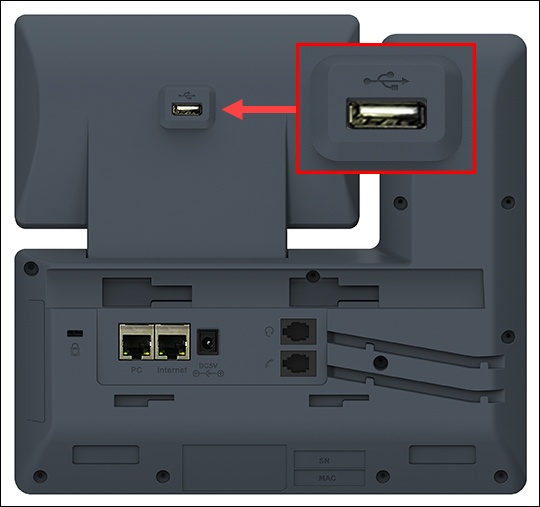
- Connect a USB flash drive to the USB port.The USB port is located on the back of the screen.
- To record call audio:
- Select .
- To stop recording, selectStop RECwhile recording is active.
- To play recorded calls on the desk phone:Recorded calls are saved in .WAV format and are saved automatically to internal storage or the USB flash drive.
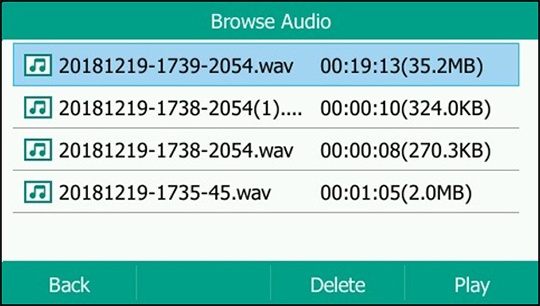
- From the Home screen, navigate: .For the T57W model, navigate: .The Browse Audio screen shows all recorded files (file name, duration, time and file size). The file name consists of the recording time and date, the other party's number / IP address / name (or the number / IP address / name of the first party you called).
- Highlight the desired file then selectPlay.For the T57W model, tap the desired file.The length of the recording and a progress bar are displayed as the recording plays.
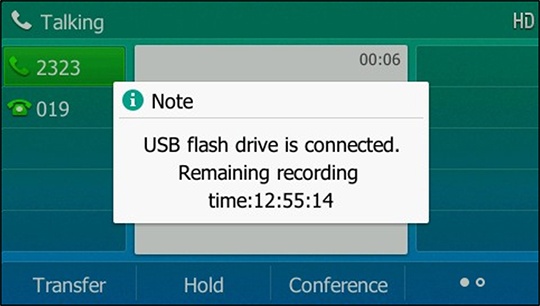
- To view the used and remaining space on your USB drive, navigate: .For the T57W model, navigate: .When inserting a USB flash drive during a call, a pop-up displays the remaining available recording time.During a recording, if free space is low, the phone displays 'XX:XX minutes left for call recording'. If there is no free space left, the recording stops and is saved automatically.