One Talk VZP59 IP Desk Phone - Call Recording via USB Storage
Here's how to record call audio to a USB flash drive using your VZP59 IP desk phone.
- Only one USB device (e.g., flash drive, Bluetooth or Wi-Fi adapter, etc.) can be used at a time.
- Up to 12 hours of audio can be recorded in one file.
- By default, recorded audio files are saved to the internal SD card but can be saved to a USB flash drive if one is connected to a USB port on the phone.
- Recorded files are saved first to the USB flash drive if one is connected, then to the internal SD card as storage space fills up.
- Recording can only begin during an active call.
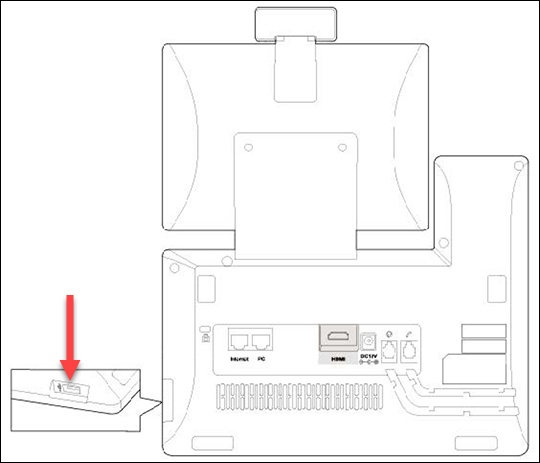
- If using a USB flash drive, connect it to one of the available USB ports.View from the back of the phone:
- To record call audio:
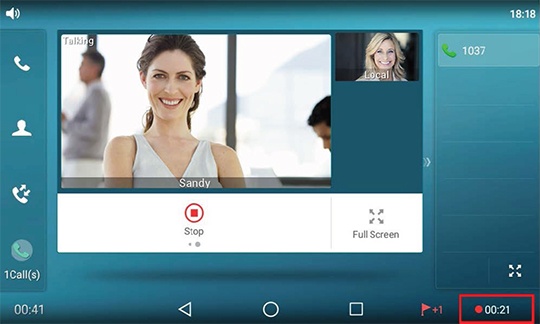
- During an active call, swipe the soft key area left then tapRecord.The screen displays a recording icon and recording duration.If on a conference call, all conference participants are recorded.If one of the participants holds the call, only that participant is recorded.If a conference call is placed on hold, the recording is paused; recording resumes when the conference call is resumed.
- You can set a mark by tapping theMark icon
while recording.
- To stop recording, swipe the soft key area left then tapStop.Alternatively, tapEnd Call. The recording is saved automatically.
- To play recorded calls on the desk phone:Recorded calls are saved in .AAC format and are saved automatically to the USB flash drive or to the internal SD card if a flash drive is either not present or is full.If recordings are saved to a flash drive, you can connect it to a computer and play the recordings using an audio player capable of playing files in .AAC format.
- From the Home screen, swipe left or right to go to the second idle screen.
- Tap theRecorder icon
to launch the Recorder application.
- Tap theOptions icon
next to the recording you want to play.
- TapPlay.
- To view the used and remaining space on your USB drive or internal storage:
- From the Home screen, swipe left or right to go to the second idle screen.
- Navigate: .
- View the available capacity.