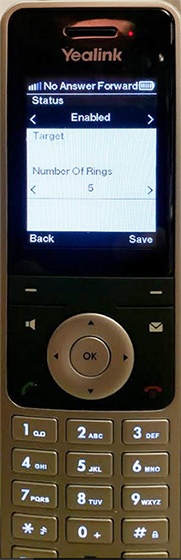
One Talk W60 IP DECT Cordless Phone - View / Manage Call Forward Settings
Here's how to manage call forward settings on your W60 IP DECT cordless phone.
- Settings are managed from the W56HV cordless handset.
- Overall ring time settings can be controlled on the desk phone.
- Adjusting ring time settings in conjunction with No Answer Transfer or Busy Transfer on a desk phone changes the amount of time the desk phone will ring.Example: Adjusting ring time to 3 rings results in a 15-second ring time. This can cause unwanted results for incoming calls to the One Talk phone number when called directly or transferred by an Auto Receptionist or other line type.
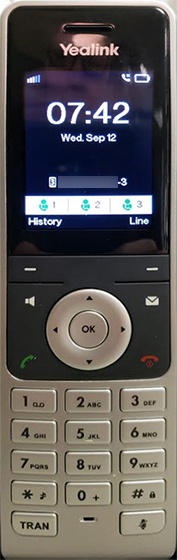
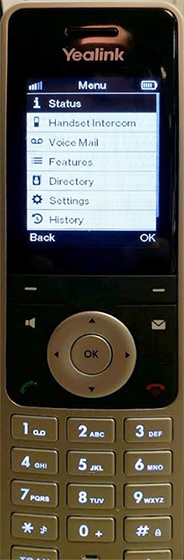
- Press theOK buttonto open the main menu.
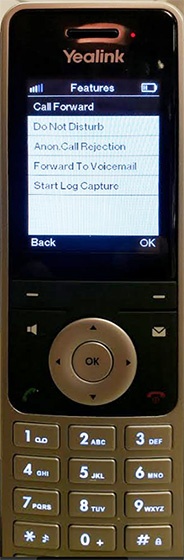
- Press thedown directional keyto scroll toFeaturesthen pressOK.
- 'Call Forward' is highlighted as the first choice. Press the right soft key or the OK button.
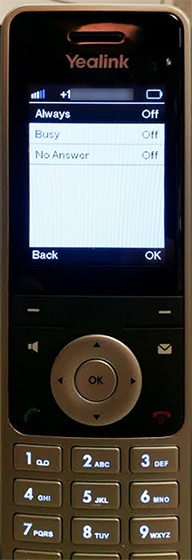
- Press theup/down directional keysto select the desired call forward type then press the right soft key or OK button.
- Press theleft/right directional keysto turn on or off.
- Press thedown directional keyto scroll to Target then use the keypad to enter/edit the 10-digit phone number where you want calls to be forwarded.
- Press thedown directional keyto scroll to Number Of Rings then press theleft/right directional keysto select the desired number of rings.
- Press theright soft key('Save') to save changes.