One Talk T46S/SW IP Desk Phones - Set Up Wi-Fi
Here's how to set up Wi-Fi on your One Talk T46S/SW IP Desk Phones.
- The WF50 USB Wi-Fi adapter:
- is included with the T46SW model and sold separately for the T46S model.
- supports connecting to 2.4 GHz and 5 GHz Wi-Fi networks.
- is not compatible with previous One Talk desk phone models.
- The WF40 USB Wi-Fi adapter can also be used with these desk phone models.
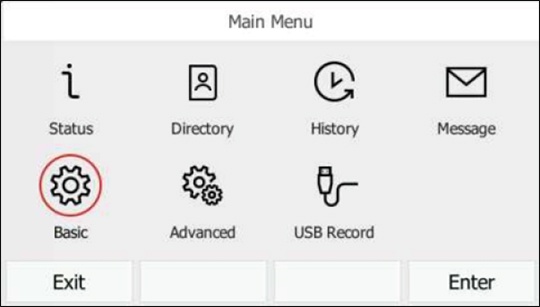
- From the Home screen, press theMenu soft key.
- Using the navigation keys, select Basic then pressOK.
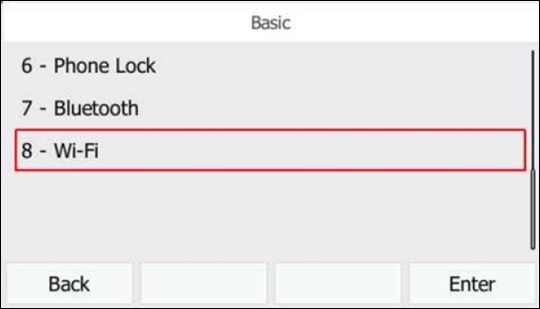
- SelectWi-Fithen press theEnter soft key.
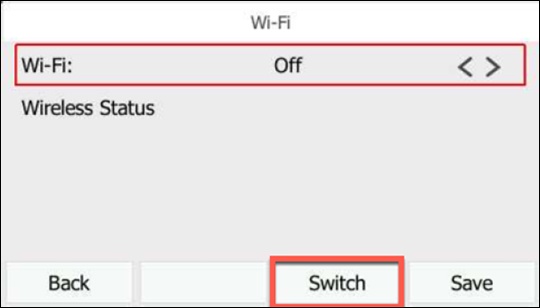
- Press theSwitch soft keyto turn Wi-Fi on.
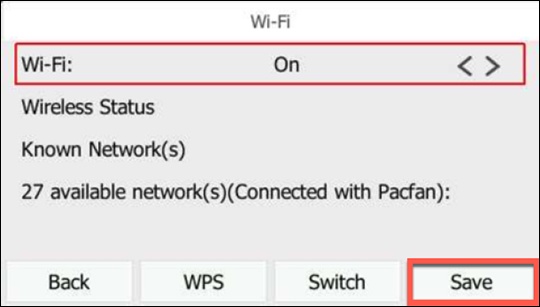
- Press theSave soft key.The phone automatically searches for available networks.
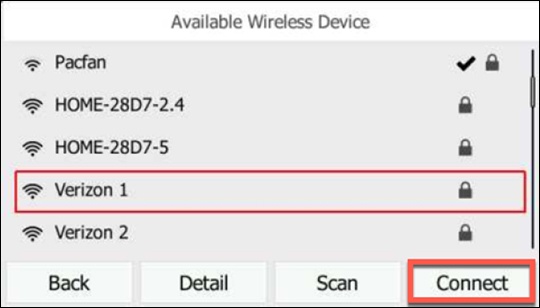
- Select the preferred network then press theConnect soft key.
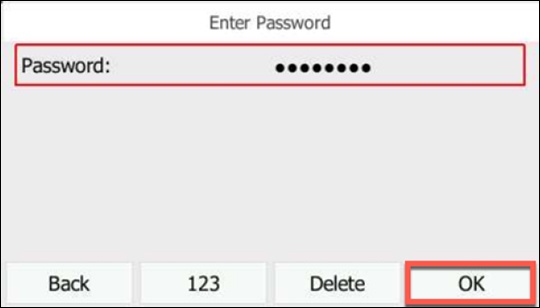
- If prompted, enter the Wi-Fi password then pressOK.You can change the key entry type, e.g., abc, ABC, 123 by pressing the second soft key from the left, under the screen.