One Talk T64LTE 4G LTE Desk Phone - Call Recording via USB Storage
Here's how to record call audio to a USB flash drive using your One Talk T64LTE 4G LTE desk phone.
- Only 1 USB device (e.g., flash drive, Bluetooth adapter, etc.) can be used at a time.
- Up to 12 hours of audio can be recorded in one file.
- By default, recorded audio files are saved to the internal SD card but can be saved to a USB flash drive if one is connected to a USB port on the phone.
- Recorded files are saved first to the USB flash drive if one is connected, then to the internal SD card as storage space fills up.
- Recording can only begin during an active call.
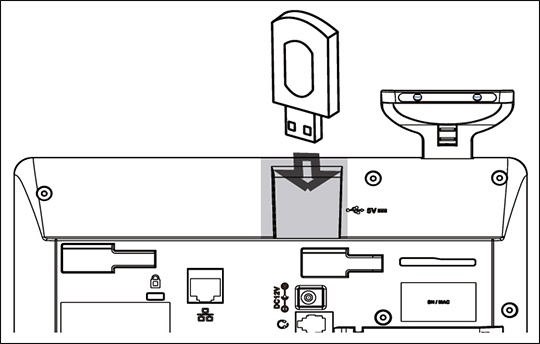
- If using a USB flash drive, connect it to the USB port.The USB port is located on the back of the phone.
- To record call audio:
- On the touch screen, tapMore
then select
Record.If on a conference call, all conference participants are recorded.If one of the participants holds the call, only that participant is recorded.If a conference call is placed on hold, the recording is paused; recording resumes when the conference call is resumed. - To set a mark for reference during later playback, tapMark
.
If more than one mark is set, the iconreflects the number of marks.
- To stop recording, tapMoreStop.Alternatively, tapEnd Call
.
The recording saves automatically.
- To play recorded calls on the desk phone:Recorded calls are saved in .AAC format (audio-only) or .MKV format (audio and video) and are saved automatically to the USB flash drive or to the internal SD card if a flash drive is either not present or is full.If recordings are saved to a flash drive, you can connect it to a computer and play the recordings using an audio player capable of playing files in .AAC format.
- TapMoreRecorder.
- Select the location where the file is stored (e.g., USB, Internal).
- Tap thePlay icon
next to the desired recording.
- To view the used and remaining space on your USB drive or internal storage, tapMoreStorage.