One Talk T64LTE 4G LTE Desk Phone - View / Reply to a Text Message (SMS)
Here's how to view and/or reply to text messages on your One Talk T64LTE 4G LTE desk phone.
- If two desk phones are configured on the same line, messages are delivered to only one of the desk phones. It's recommended to enable the text messaging feature on only one desk phone per line.
- If a line is being shared by a desk phone and other endpoints (e.g., Mobile App, Desktop app), all endpoints receive incoming messages. However, messages sent from a desk phone won't appear as outgoing messages on the other endpoints.
- Desk phones only support SMS; MMS isn't supported. If a picture / video message is sent to a desk phone line, any media in the message is removed and only the accompanying text displays.
- The desk phone can store up to 50 text messages across all folders. When the phone reaches 50 messages, the user is notified that the mailbox is full and messages should be deleted. If the user does nothing, when a new message is received the oldest message is deleted automatically.
- Text messages sent from the desk phone can be up to 918 characters long.
- Do one of the following:
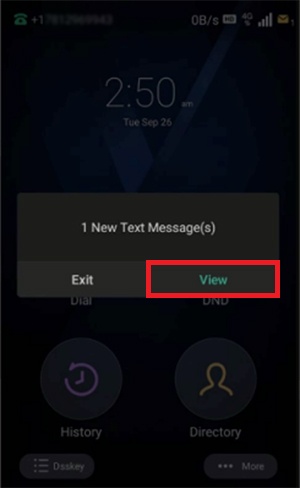
- To view a new message immediately as it's received, tapViewat the notification prompt.
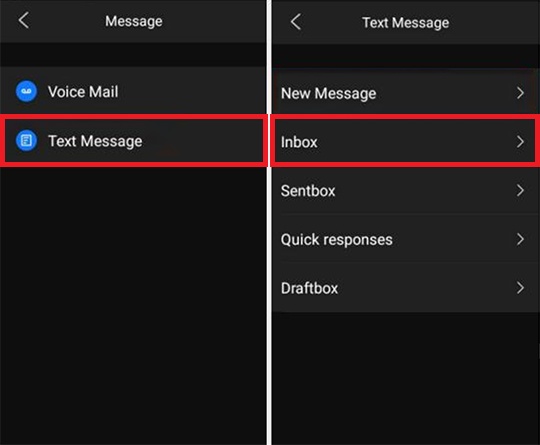
- To view messages from the main menu:
- From the Home screen, navigate: .
- TapText Messagethen tapInbox.To view messages in other inboxes, select the appropriate box.
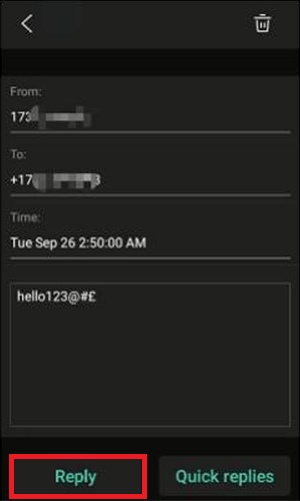
- To reply to the message, tapReply.Messages can also be deleted from this screen or from the Inbox using theDelete icon
(upper-right).
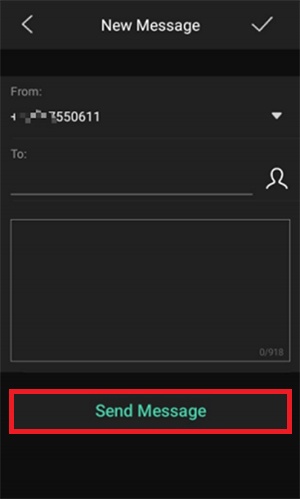
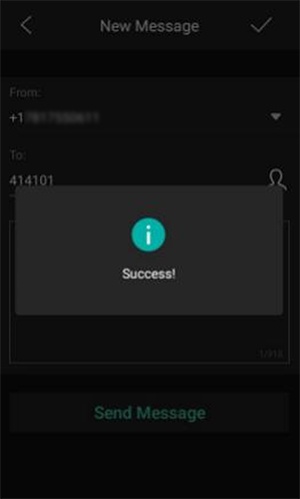
- Ensure the destination address is entered correctly in the 'To:' field, enter the message text then tapSend Message.
- View the confirmation message.