One Talk Mobile App - Enable / Manage Business Directory
Here's how to manage Business Directory contacts using the One Talk mobile app.
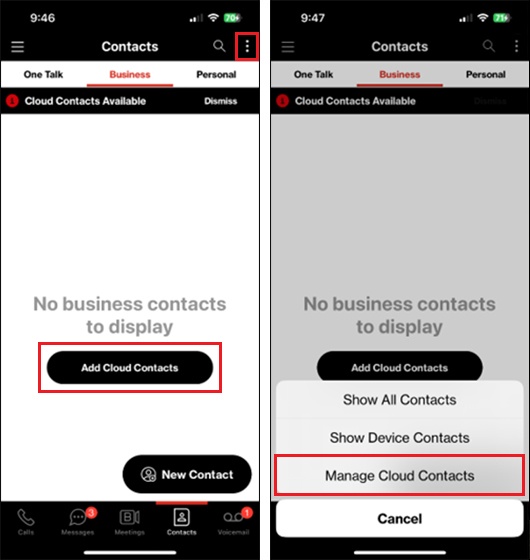
If there are no business contacts imported from cloud services or directly into the app, the Business tab prompts the user to add Cloud contacts or create a new contact directly using the New Contact button.
To perform any of the operations below, start by tapping
Contacts
at the bottom of the screen then selecting the Business tab
at the top.Add Cloud Contacts
Cloud contacts allow the user to use their Google and/or Salesforce.com contacts within the One Talk app to easily call or message their business contacts.
- To begin adding Cloud contacts, do one of the following:
- TapAdd Cloud Contacts.
- Tap theOptions icon
(upper-right) then select
Manage Cloud Contacts.
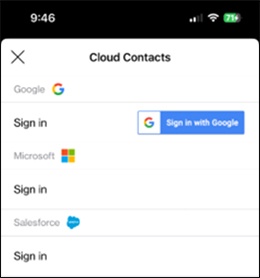
- From the sign-in screen, tapSign innext to the appropriate service (Google, Microsoft, or Salesforce.com).
- To remove Cloud contacts from the One Talk app:
- From the Business tab, tap theOptions iconManage Cloud Contacts.
- TapSign outnext to the appropriate account.When signed out, contacts from that account are removed from the Business tab.
Add Device Contacts
- Contacts can be created directly within the One Talk app.
- If the One Talk app is uninstalled from the device, contacts created within the One Talk app are removed from the phone and must be created again if the app is reinstalled.
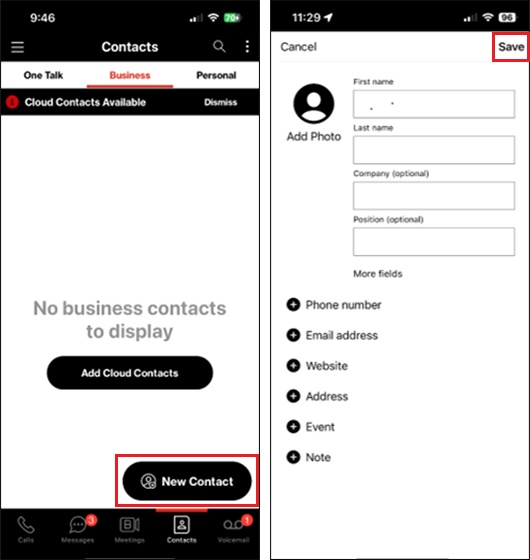
- TapNew Contact.
- Fill in the appropriate info fields then tapSave(upper-right).
Filter Business Contacts
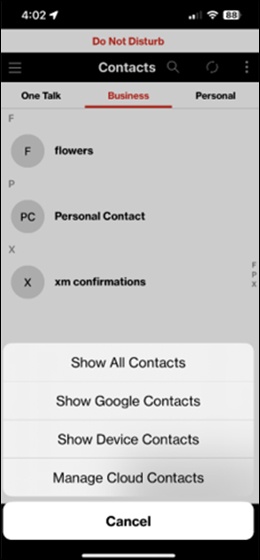
You can choose to show all Business contact entries or apply filters to show contacts from a single account type (e.g., Google, Device, etc.).
- Tap theOptions iconManage Cloud Contacts.
- Select the desired option from the menu.
Search for Contacts
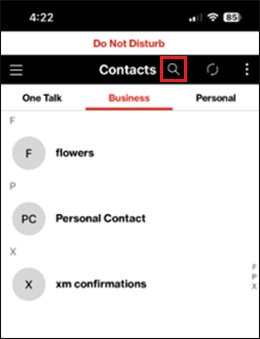
- To search for a specific contact, tap theSearch icon
in the menu bar at the top of the screen.