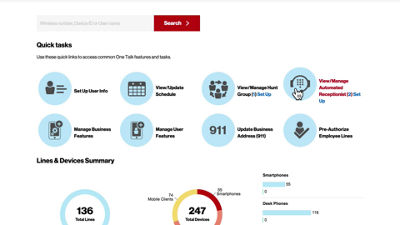
This video will show you how to set up the Automated Receptionist feature.
On the One Talk overview page, click View/Manage Automated Receptionist from Quick Tasks.
This feature requires a dedicated line. If you currently do not have an Automated Receptionist number you can purchase one by clicking Purchase Automated Receptionist.
Before beginning, you can click to view the setup instructions. Then click a line to manage its settings.
Create a name for your Automated Receptionist, as well as a Calling ID Name that will display when a call is forwarded to a member of the group. Select the appropriate time zone and click Setup Automated Receptionist.
You can choose to run Auto Receptionist at all times or on a set schedule. In addition, you can define one set of prompts and a greeting for business hours, and a different set of prompts and a greeting for after hours and holidays. Learn more in our Setting up Schedules video.
You can also choose whether you'd like to use a default greeting or upload your own WAV file, formatted to these specifications. Preview your greeting by clicking the Play button.
Next, select a prompt command for each available option.
See the guide on the support page for more information about each.
Click Continue, review your configuration and click Submit to save your changes.
If you need additional assistance please refer to the One Talk Resources Support page.