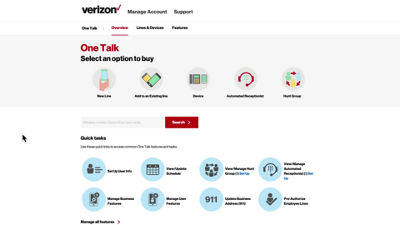
This video will show you how to set up schedules.
While not required, schedules can simplify management of certain One Talk features, such as Automated Receptionist, Hunt Groups, Group Forwarding and Selective Call Acceptance.
From the Overview page, under Quick Tasks, select View/Update Schedule. Click Create Schedule.
Create a name, making sure there are no spaces, then click Choose Schedule.
You can choose from two preset schedules: 24/7 and 9 to 5. Or create a custom schedule by clicking the Custom tab.
To make changes to any start or end time, simply click and select a new time from the dropdown menu.
Click Submit and your schedule has been created.
If you need additional assistance, please refer to the One Talk Resources Support page.