Software Upgrade Assistant (ASUS) - Repair Assistant
Here's how to upgrade the software on your ASUS device if the software update failed.
This helps you repair the software on your ASUS device using your laptop/PC.
The repair process may take up to 30-90 minutes. Do not disconnect the device from the computer during the repair process.
- To use the Software Repair Assistant (SRA), ensure the wireless device is powered on and able to be unlocked if necessary then connect it to a compatible computer using the supplied USB cable.
- If the device is not recognized immediately, pull down the notification panel to switch the device mode from "Charge Only" to "MTP", "File Transfer" or "Software Installation" mode.
- The most recent software version becomes available on the SUA/SRA tool within a week of a new software update. During this time, the SUA/SRA is unavailable for usage.
Preferred Method
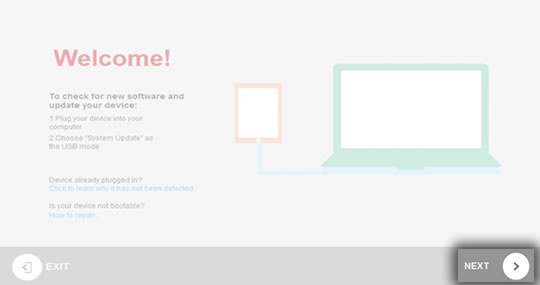
- Turn the device on and plug it into the computer. If the Software Upgrade Assistant software is installed, clickNEXT. Refer to Initial Setup - Software Upgrade Assistant for assistance.If the software doesn't download from your device after plugging into your computer, download from ASUS's website.When the device is plugged into the computer, it confirms the latest software update is installed on the device and update it if necessary.If the device cannot turn on, refer to the alternate method.
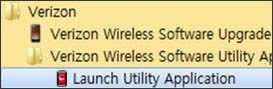
- If necessary, from the Windows desktop, navigate , then skip to step 4.For PCs using Windows 8 or 10, skip this step and start with step 3.
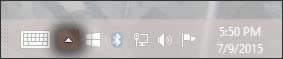
- Click the "Hidden icons" arrow to find and click theSoftware Upgrade Assistant tray icon
to launch the utility app.
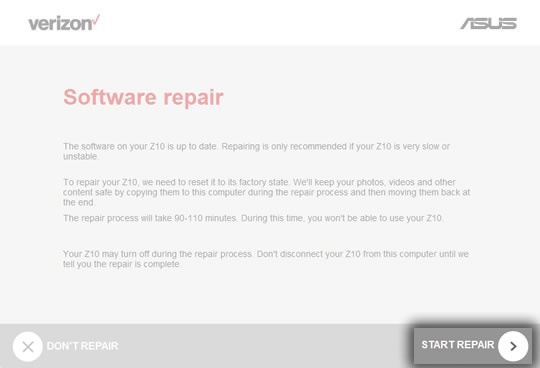
The Hidden icons arrow is located on the desktop, not the screen with tiles. If tiles are present, click on the Windows start button (located in the bottom-left) to show the Windows desktop. - On the "Software repair" screen, clickStart Repair.
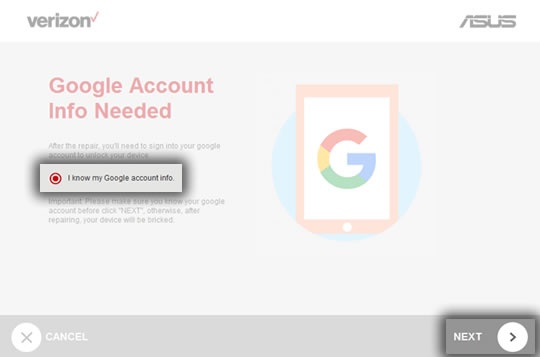
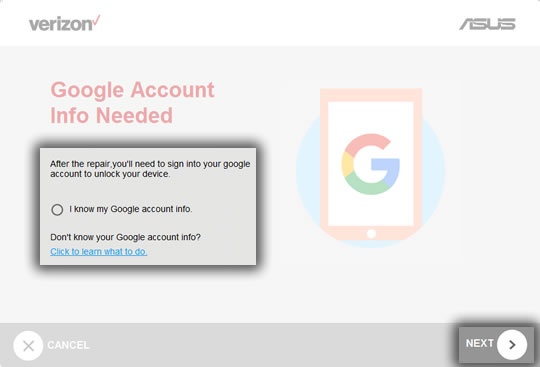
- From the "Google Account Info Needed" screen, click the "I know my Google account info" check box, clickNEXT, then skip to step 7.If you do not know your Google info, click on "Click to learn what to do."
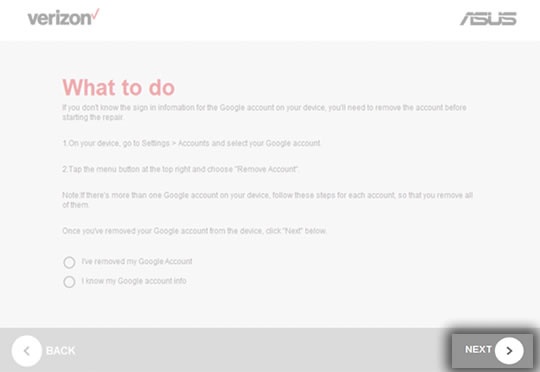
- From the "What to do" screen, follow the instructions then clickNEXT.The update downloads at this time, which could take up to 140 minutes. As soon as the download is complete, the repair process begins automatically and can take up to 150 minutes.
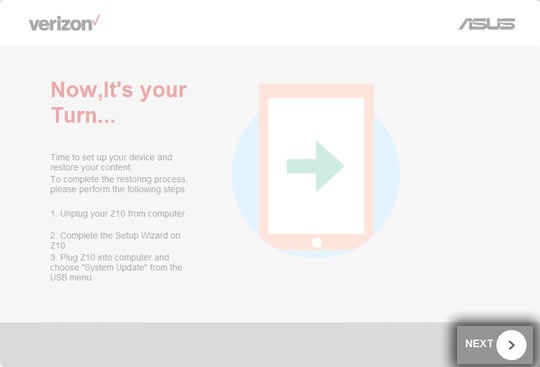
- From the "Now, It's your Turn..." screen, follow the instructions and then clickNEXT.
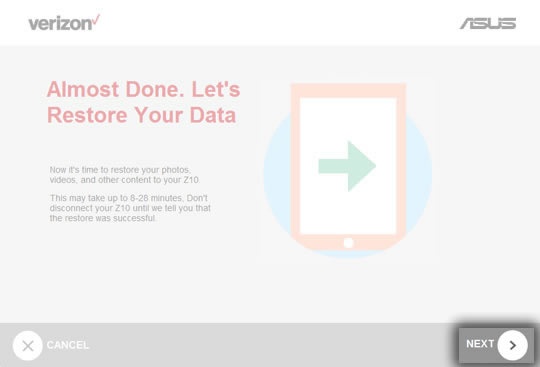
- From the "Almost Done" screen, click theNEXTbutton to start the data restoration process.The "Restoring Data..." screen appears showing the restore progress, which can take up to 25 minutes.
- When the restore process has completed, clickEXIT.The status shows asRestore Successful.
Alternate Method
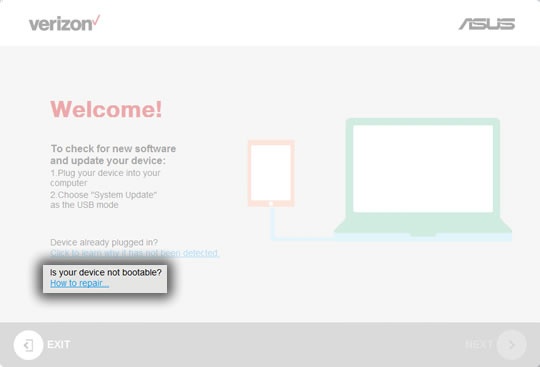
- Plug the device into the computer. If the Software Upgrade Assistant software is installed, from the "Welcome" screen, clickHow to repair....
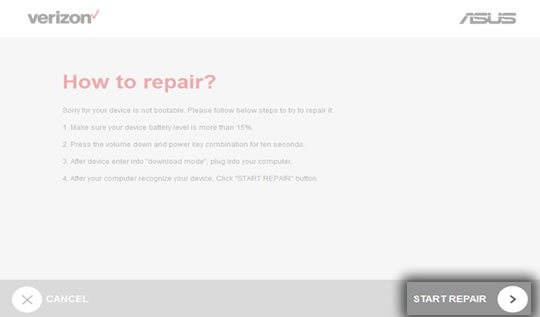
- On the "How to repair?" screen, follow the instructions then clickStart Repair.
- Click the "I know my Google account info" radio button, then clickNEXTto continue.The repairing does not continue if you do not know your Google account info.If the repair image was not pre-downloaded, it is downloaded at this stage and can take up to 130 minutes. The repair process, which can take up to 150 minutes, begins immediately after the repair image download is complete.
- When the repair process has completed, clickEXIT.The status shows asRepair Successful.