Software Upgrade Assistant (ASUS) - Initial Setup
- This shows you how to install the ASUS Upgrade Assistant on your PC or Mac to use if the Over the Air software upgrade fails.
- If the update fails to install, please refer to the Software Repair Assistant for further assistance.
Ensure the following system requirements are met prior to installation of the Software Upgrade Assistant (SUA):
- Windows XP (SP1, SP2 or SP3), Windows Vista, Windows 7, Windows 8, and Windows 10.
- PIII 1000 MHz CPU or higher
- 512 MB of RAM or more
- At least 3 GB of available hard drive space
- VGA 1024x768 or higher
- USB cable
- High-speed Internet connection
- The most recent software version becomes available on the SUA/SRA tool within a week of a new software update. During this time, the SUA/SRA is unavailable for usage.
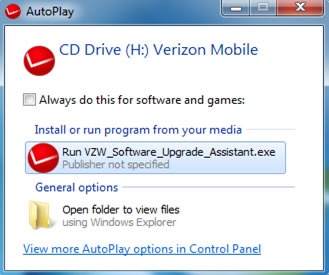
- Ensure the wireless device is powered on then connect it to a compatible computer using the supplied USB cable. When tethered, an Autoplay pop up opens automatically on the computer.If the device is not recognized immediately, pull down the notification panel on the phone to switch the device mode from "Charge Only" to "File Transfer" or "Software Installation" mode.If the software doesn't download from your device after plugging into your computer, download from ASUS's website.
- From the AutoPlay pop up window, clickRun VZW_Software_Upgrade_Assistant.exe.If the AutoPlay pop up window is not available:
- For Windows 7, right-click on theStart menu iconthen clickOpen Windows Explorer. Click on the computer name then clickCD Drive: Verizon Mobile.
- For Windows 8 and 10, right-click on theStart menu iconthen clickFile Explorer. Look under "Devices and drives" and clickCD Drive: Verizon Mobile.
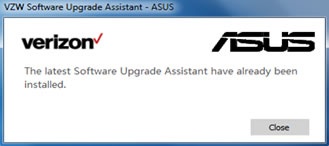
- If "The latest Software Upgrade Assistant have already been installed" appears, clickClose.
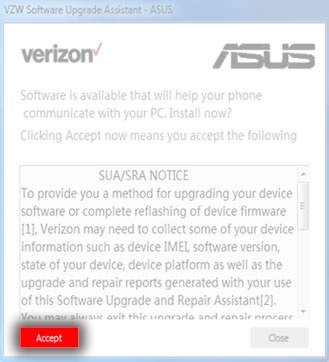
- To continue, review the SUA/SRA Notice then clickAcceptto bring the download.
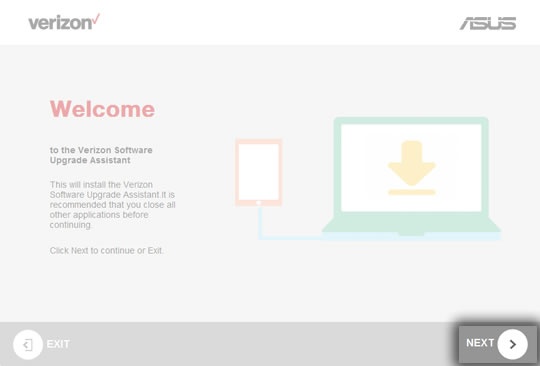
- From the Welcome screen, clickNext.
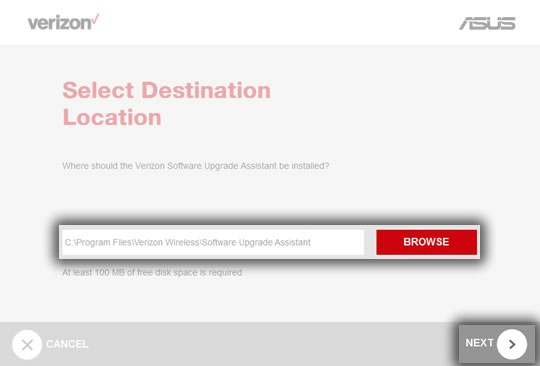
- If prompted to download software to a specific location on the device, browse to the location if desired then clickNextto begin the software installation.
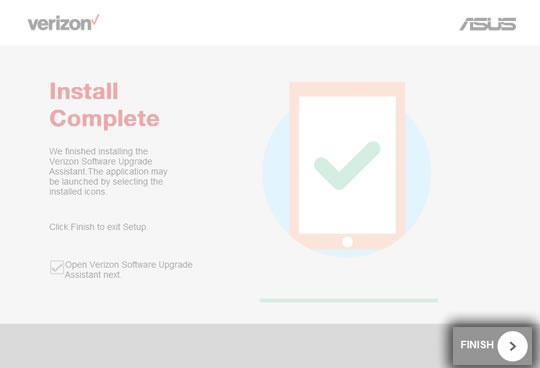
- Once the installation process is complete, clickFINISH.
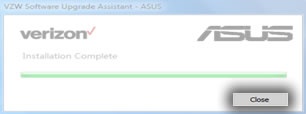
- Click theClose buttonto exit.
- Click theSoftware Upgrade Assistant tray iconto launch the Software Upgrade Assistant.If the SUA tray icon is not visible in the system tray, click theShow hidden icons icon
located in the system tray to reveal additional program icons.
.