Software Upgrade Assistant (Quanta) - Initial Setup
Here's how to install the Quanta Ellipsis Upgrade Assistant on your laptop or computer.
- This shows you how to install the Quanta Upgrade Assistant on your PC or Mac to use if the Over the Air software upgrade fails.
- If the update fails to install, please refer to the Software Repair Assistant for further assistance.
Ensure the following system requirements are met prior to installation of the Software Upgrade Assistant (SUA):
- Windows XP (SP1, SP2 or SP3), Windows Media, Windows 7, Windows 8, Windows 10, MAC OS 10.6 and later versions.
- PIII 1000 MHz CPU or higher
- 512 MB of RAM or more
- At least 3 GB of available hard drive space
- VGA 1024x768 or higher
- USB cable
- High-speed Internet connection
- The most recent software version becomes available on the SUA/SRA tool within a week of a new software update. During this time, the SUA/SRA is unavailable for usage.
Windows®
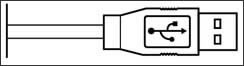
- Ensure the wireless device is powered on and unlocked (if device lock-enabled) then connect it to a compatible computer using a USB cable. When tethered, an AutoPlay pop-up opens automatically on the computer.Once connected, ensure the CD-ROM feature is enabled on the device.
- From the AutoPlay pop up window, clickSetup.exe.If the AutoPlay pop up window is not available, If the AutoPlay pop up window is not available, open Windows Explorer then clickCD Drive Installerand double-click thesetup.exefile to launch.For Windows 8 and 10, right-click on theStart menu iconthen clickFile Explorer. Look under "Devices and drives" and clickCD Drive: Verizon Mobile.Once the download process is complete, the Assistant checks for software updates.
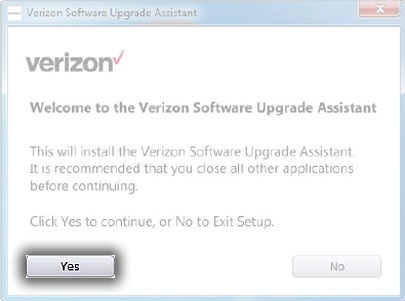
- From the Welcome screen, clickYesto continue.The software upgrade assistant downloads and installs 3 packages.
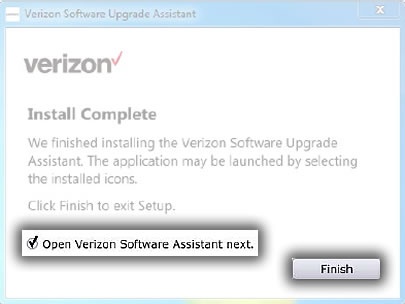
- Once the installation process is complete, clickFINISH.Click the "Open Verizon Software Assistant next" checkbox to open the SUA and continue with the software upgrade.
Macintosh®
- Ensure the wireless device is powered on and unlocked (if device lock-enabled), then connect it to a compatible computer using a USB cable.Once connected, ensure the CD-ROM feature is enabled on the device.
- From the device, swipe down on the status bar (located at the top).
- Tap the USB connection entry.
- TapSoftware Installation mode.
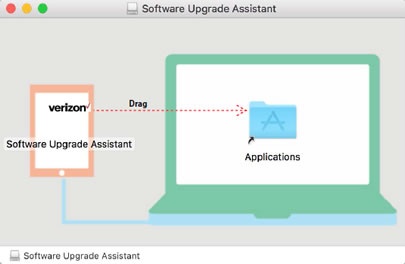
- From the CD-ROM pop-up, double-clicksetup.dmg, then drag the SUA icon to the Application folder.
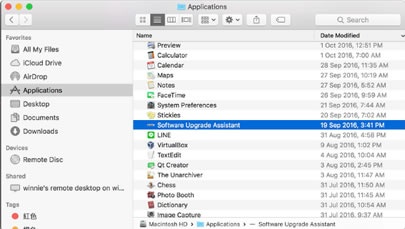
- Double-click the Software Upgrade Assistant app.
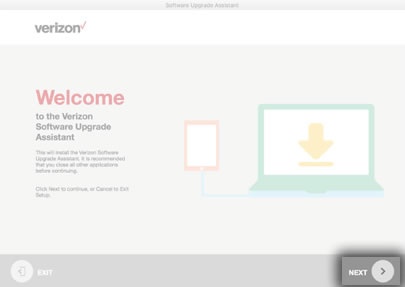
- On the Welcome screen, clickNEXTto install the Software Upgrade Assistant.
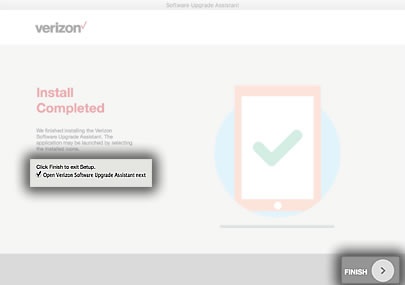
- When the installation process is complete, clickFINISH.Click the "Open Verizon Software Assistant next" checkbox to open the SUA and continue with the software upgrade.