Samsung Chromebook Plus - Add an Existing Google™ Account
Here's how to add a Google account to your Chromebook Plus (LTE).
If you don't already have an account, refer to Create a New Google Account.
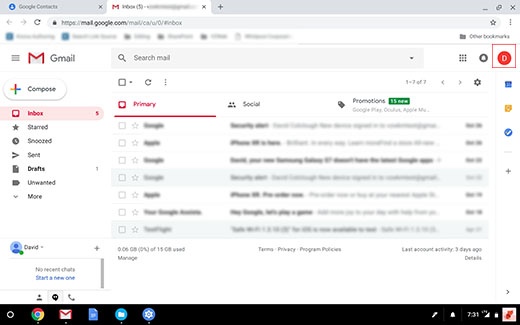
- Tap or click theGmail icon
.
- Tap or click theGoogle Account icon(upper-right).The icon appearance varies with the setup of your Google account.
- TapAdd account.
- Enter your email address into the 'Enter your email' field then tapNEXT.
- Enter your password into the 'Password' field then tapNEXT.
- If presented, review the Terms of Service / Privacy Policy then tapACCEPT(bottom-right) to confirm.