Verizon 5G Internet Gateway (LVSKIHP) - Change the Admin Password
Here's how to change the admin password to manage settings for the 5G Internet Gateway (LVSKIHP).
This info doesn't apply to changing the password used to connect to your Router via Wi-Fi. The admin password is used to sign in to the device web interface to manage settings (e.g. network name, network password, etc.).
This content is for the 5G Internet Gateway (LVSKIHP). Refer to How to Identify Verizon 5G Home Equipment if you need to verify the model you're using.
- Sign in to the Admin WebGUI.You must be connected to the 5G Home Internet network to access the admin page.
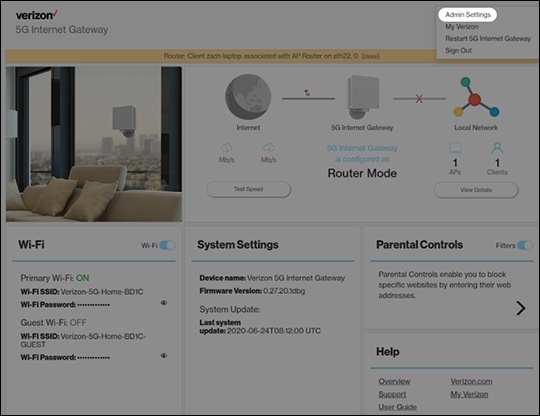
- From the Home screen, click theDropdown arrow
(upper-right) then click
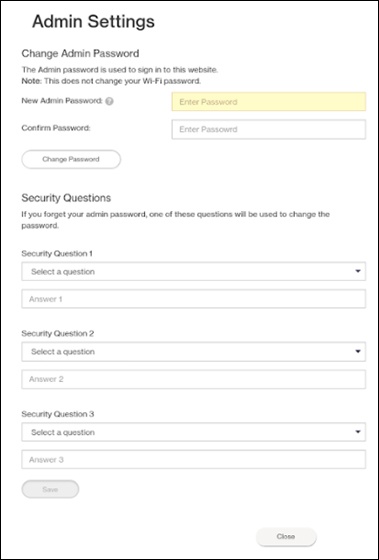
Admin Settings. - From Admin Settings, enter the the appropriate password into the following fields then clickChange Password:The password must be 8-32 characters.
- New password
- Confirm new password
- From Security Questions, select the appropriate security questions and enter the desired answers then clickSave.