Verizon 5G Internet Gateway (LVSKIHP) - Sign in to the Admin WebGUI
Here's how to access the admin page, which helps if you forgot the admin password for the 5G Internet Gateway (LVSKIHP).
- Ensure you have an active connection (wired or wireless) between the router and the device you're using to access the admin page.
- If the Wi-Fi connection has been previously disabled through the admin page, you may not be able to enable it after a Factory Reset is completed.
This content is for the 5G Internet Gateway (LVSKIHP). Refer to How to Identify Verizon 5G Home Equipment if you're unsure of the device model.
- Establish a Wi-Fi or wired network connection with a device (e.g., computer, smartphone, tablet, etc.).If connecting to a computer, select the appropriate operating system for assistance:
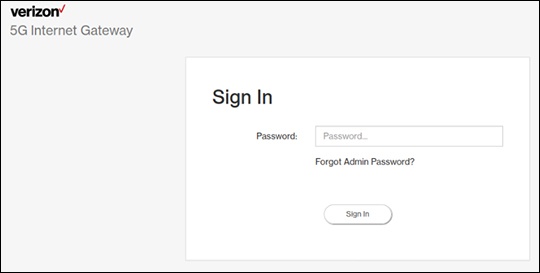
- From the device that's connected to the Gateway, open a web page then enterhttp://my.routerinto the URL address field.Alternatively, enter 192.168.0.1 into the URL address field.If the admin password is forgotten, clickForgot Admin Password?then answer a security question to reset the password.
- Enter the Wi-Fi / WebGUI password then clickSign In.The default WebGUI password can be found on the bottom of the router (labeled 'Administrative URL / Password).