Verizon 5G Internet Gateway (LVSKIHP) - Set Up Port Forwarding
Here's how to set up port forwarding, an advanced networking option, on the 5G Internet Gateway (LVSKIHP).
Port forwarding is an advanced networking feature. To obtain app settings, contact the app creator.
This content is for the Internet Gateway (LVSKIHP). Refer to How to Identify Verizon 5G Home Equipment if you're unsure of the device model.
- Sign in to the Admin WebGUI.You must be connected to the 5G Internet Gateway to access the admin page.
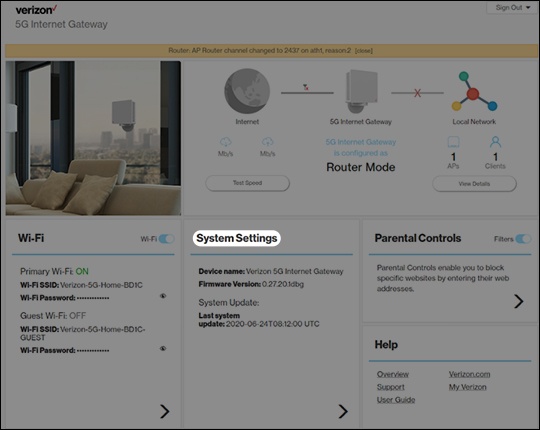
- From the Router Home screen, clickSystem Settings.
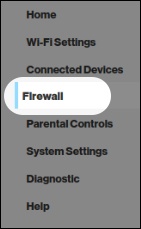
- From the left menu, clickFirewall.
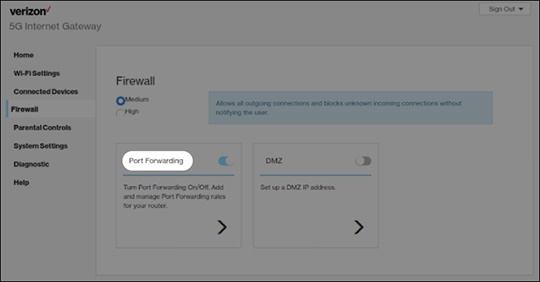
- From the Firewall section, clickPort Forwarding.
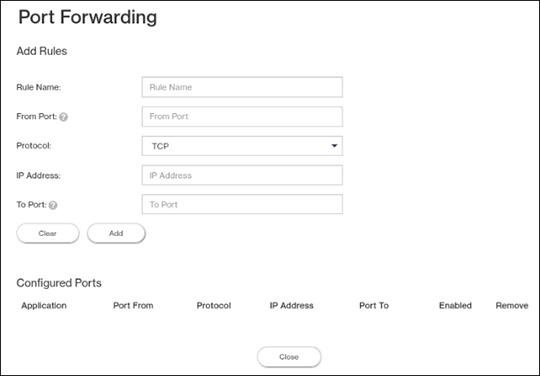
- From Port Forwarding, configure the appropriate forwarding options then clickAdd.Click thePort Forwarding switchto turn on
or off
.
Rules under Configured Ports are enabled when a checkmarkis present.
- Rule Name
- From Port
- Protocol (select from the dropdown menu
)
- IP Address
- To Port
- ClickClose.