Fossil Gen 5 LTE Smartwatch - Add an Existing Google Account
Here's how to add an existing Google (Gmail) account to your Fossil Gen 5 LTE Smartwatch.
If you need to add an existing Google™ (Gmail™ account to your Fossil Gen 5 LTE Smartwatch smartwatch, follow these step-by-step instructions.
- Email accounts are managed through the Android™ smartphone, not from the watch.
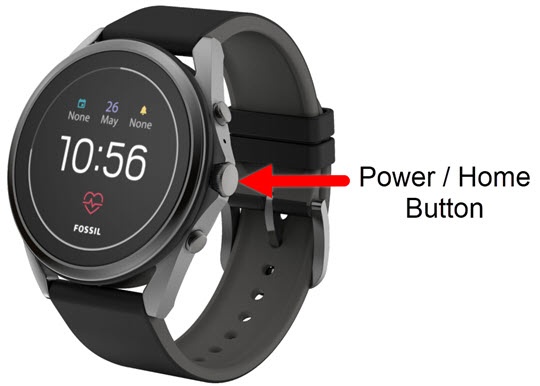
- From the watch screen, press thePower /Home buttonto open the apps screen.
- Tap theSettings icon
.
- TapPersonalization.
- TapAccounts.
- TapAdd Google Account.
- From the 'To add a Google...' screen, tapAdd from phone.
- From the 'Accounts' screen on the smartphone do one of the following:
- Tap the email account you want to add.
- TapAdd another account, to add a new Google account.
- Tap the switch (right of email) to turn on
to copy to the watch.
- From the 'Copy to your watch?' screen, tapCopy.If prompted, enter your password then tapSIGN IN.