One Talk CP925 / CP965 IP Conference Phone - Activate / Set Up Device
Here's how to quickly set up your CP925 / CP965 IP Conference Phone.
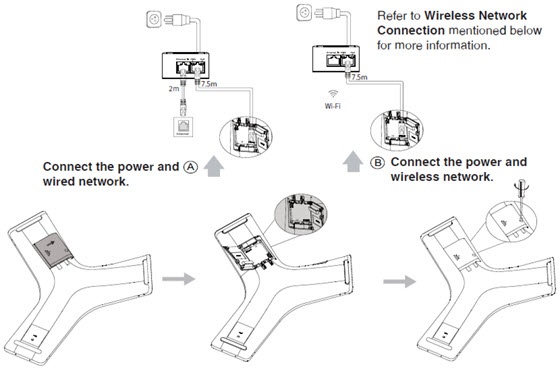
- Connect the power and wired network.This conference phone requires the Yealink original (54V/0.56A) Power-over-Ethernet (PoE) adapter, which provides power and wired network connection using the same Ethernet cable.You can also connect to a Wi-Fi network after startup. Refer to Step 3 for more information.
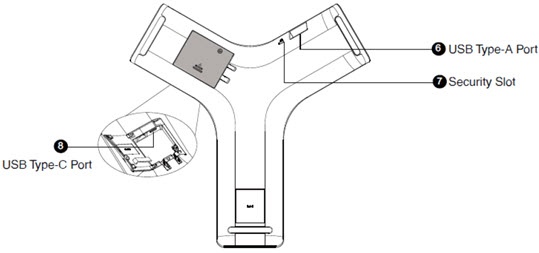
- If desired, connect a USB flash drive (for use with the USB Call Recording feature).
- Configuring Wi-Fi via the user interface:
- From the Home screen, navigate: .
- If necessary, tapTurn on Wi-Fi.
- Tap the desired network (SSID) to connect to it.If the network you want to connect to isn't available, tap theOptions icon
then tap
Scanto search for available networks. - If the network is secure, enter its password in the Password field then tapConnect.Tap (check)Show passwordto show characters as they're being entered.If necessary, tap (check)Show advanced optionsto configure the HTTP proxy for the Browser application.
- Startup:
- After the IP phone is connected to the network and supplied with power, it automatically begins the initialization process.
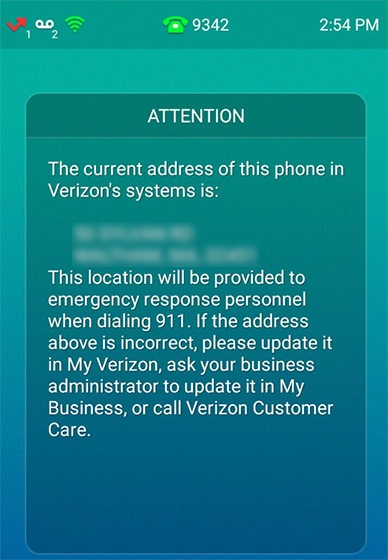
- From the 911 notification screen, tapOK.The 911 screen displays after successful activation.