One Talk W60 IP DECT Cordless Phone - Activate / Set Up Device
Follow these steps to perform initial activation on your One Talk W60 IP DECT cordless phone.
The W60 bundle includes a base station (W60) and one handset (W56HV). The W56HV handset that shipped as part of the bundle will automatically link to the base station.
- Activation requires a valid US address for E911 functionality.
- A soft reset is needed on the desk phone when a new endpoint is added to the One Talk MDN.
- If the desk phone only boots partially and displays "Invalid security certificate", it must be replaced via the CLNR/WFG exchange process. The desk phone will not work under this condition.
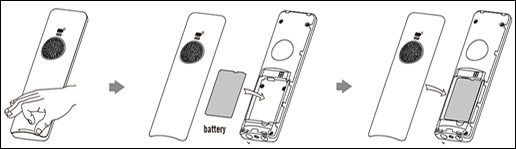
- Insert the battery into the W56HV Handset.Use the supplied charging cradle power adapter (5V/600mA). With the battery charged, you can use the handset to monitor the progress of the base station initialization and registration process.
- Turn the handset on.
- Set up the base station using one of the following options:
- Desktop setup option
- Wall mount setup option
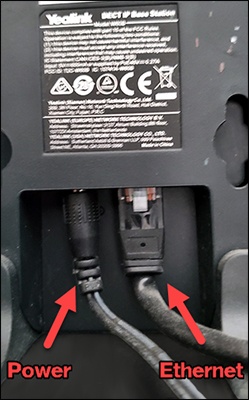
- Connect the base station to the power and Ethernet by selecting one of the following options:Contact your IT administrator before selecting the power option:
- AC PowerUse the supplied charging cradle power adapter (5V/600mA).
- PoE (Power over Ethernet)
- After your phone is powered on, the system boots up and performs automatic phone initialization.When your One Talk phone is connected to the network and powered on, it automatically starts the initialization process. The LCD screen displays "Initializing, please wait during this process." The phone finishes the initialization by loading the saved configuration.
- After starting up and confirming the 911 address, the phone is ready for use.
- To register additional handsets:
- On the W60 base, press and hold thePage/Sync Button(looks like a Wi-Fi icon) on the base station until the top LED blinks (The pattern is a fast three blinks, happens after approx. 4 seconds).
- On the W56 handset, pressOKthen navigate: .
- Choose the desired base station and pressOK.
- After the handset finds the base station pressOK.
- Enter the base station PIN (default: 0000) and press theDone soft keyto finish registration.
- Follow steps 1-5 to register a handset to multiple base stations.Be sure to choose a base station that has not already been selected to avoid overwriting the existing selection.
- To de-select handsets:
- From the main screen, press theNavigational button(located in the middle) on the W56HV Handset then navigate: .
- Enter the base station PIN (default: 0000) and press theDone soft key.
- From the list of handsets displayed on the LCD screen, highlight the desired handset name and pressOK.
- When the screen prompts "De-register Handset", press theYes soft keyto de-register the handset.