One Talk CP920 IP Conference Phone - Activate / Set Up Device
Follow these steps to perform initial activation on your One Talk CP920 IP conference phone.
- Activation requires a valid US address for E911 functionality.
- Wi-Fi Calls always originate in the U.S., even when you're outside of the U.S.
- Calls to U.S. numbers are not billed (except for 411 or other premium calls).
- Calls to international numbers are billed according to your international long distance plan.
- A soft reset is needed on the desk phone when a new endpoint is added to the One Talk MDN.
- If the desk phone only boots partially and displays "Invalid security certificate", it must be replaced via the CLNR/WFG exchange process. The desk phone will not work under this condition.
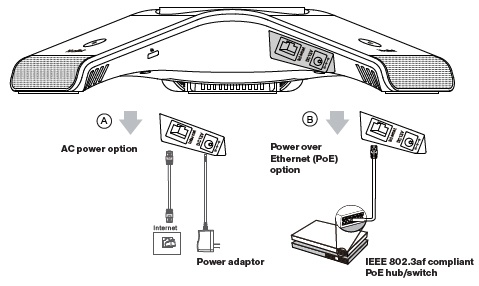
- Connect the power and wired network.You have two options for network and power connections. Your system administrator will advise you which one to use.You can also connect to a Wi-Fi network after startup. Refer to Step 3 for more information.
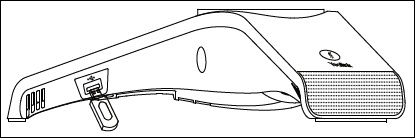
- Connect the optional USB flash drive (for use with the Call Recording via USB feature). The IP phone should be used with Yealink original power adapter (12V/1A) only. If inline power (PoE) is provided, you don't need to connect the power adapter. Make sure the hub/switch is PoE compliant.
- Configuring Wi-Fi via the user interface:
- Press theMenu soft keythen navigate: .
- Press theSwitch soft keyto turn Wi-Fi on.
- Press theSave soft key. The phone automatically searches for available Wi-Fi networks in your area.
- Select an available wireless network from the list of the available network(s).
- Press theConnect soft keyto connect to the wireless network.
- If the network is secure, enter its password in the Password field then tap theOK soft key.
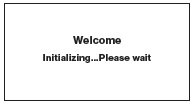
- Startup:
- After the IP phone is connected to the network and supplied with power, it automatically begins the initialization process.
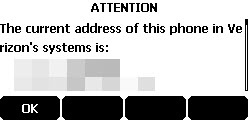
- From the 911 notification screen, pressOK.The 911 screen displays after successful activation.