Samsung Galaxy Watch - Activate / Set Up Device
Here's how to activate and set up your Galaxy Watch.
If the Galaxy Watch was purchased outside of Verizon, contact us to start a line of service for your device.
Set up your new Galaxy Watch using one of the following companion device options:
Set Up Using an Android Smartphone
- The Galaxy Watch can be set up via Number Share or as a stand alone device. To use the Galaxy Watch without a companion device, complete the steps below then refer to Set Up as a Standalone Device.
- If you're replacing an existing Samsung smart watch, refer to Replace Existing Device.
- If you're pairing an existing Galaxy Watch with a new smartphone, refer to Connect to New Phone.
- Before completing these steps, verify:
- your eSIM activation has been processed and you've received the QR code via email.
- you're in a Verizon coverage area.
- your companion Android smartphone has a cellular or wi-fi connection.If activating with Number Share, the companion smartphone must be connected to active Verizon service on the same account as the Galaxy Watch.
- Ensure the Galaxy Watch is charged and powered on.If necessary, tap the watch display to begin.
- Install the Galaxy Wearable app on your companion Android smartphone.
- Open theGalaxy Wearable app.
- TapStart.
- From the 'Pick your device' screen, tapGalaxy Watch.If Galaxy Watch isn't listed, tapScan again.If prompted, tapAllowto approve the necessary permissions.
- Ensure the passkey matches what's displayed on the Galaxy Watch then tap 'Confirm' or 'Connect' on the smartphone and theCheckmark icon
on the Galaxy Watch.
- If using a non-Samsung Android smartphone to complete setup, tapOKthen tapInstallto allow the Gear Plugin and Samsung Accessory Service to install.
- To continue, review the Terms and Conditions and Privacy Notice on your smartphone then select (check) the following and tapAgree.TapI agree to allto select all.Options may vary by paired smartphone.TapDetailsto review info before continuing.
- Sending of diagnostic data (optional)
- Mapping technologies by HERE
- If prompted with 'Allow Galaxy Watch PlugIn to...', tapAllowto approve the necessary permissions.
- If prompted, tapSign infrom the 'Get more with your Samsung account' screen to complete Samsung account setup.If you choose 'Skip', you can add a Samsung account after setup is complete.
- If prompted to Restore your watch from backups, do one of the following:
- To retrieve a previous backup:
- TapCheck for backupto retrieve a previous Samsung smart backup then tapNext.
- From the 'Restore your watch from backups' screen, tap theDropdown menu icon
then select the desired backup file.
- Select (check) the data (e.g., Phone, Messages, etc.) you want to restore then tapRestore.
- To set up as new, tapSkip for nowthen tapNext.If troubleshooting, don't restore the device until all testing has been completed.
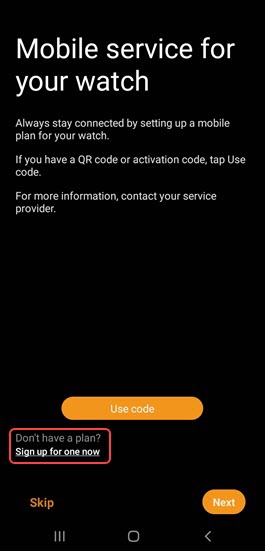
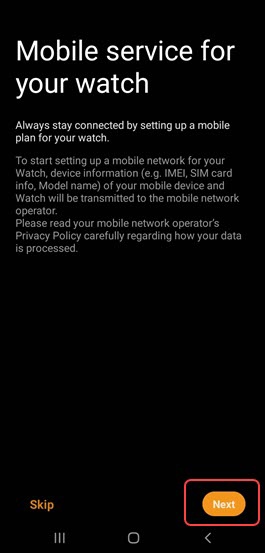
- From the 'Mobile service for your watch' screen, do one of the following:Option only available when the companion smartphone has an active SIM.If you choose 'Skip', you can add a cellular plan after setup is complete.
- Set up with a QR code:
- TapUse code.If prompted, tapAllowfor camera permissions.
- Point the smartphone's camera at the QR code below and scan it.The QR code will only work if the Galaxy Watch has been activated on a Verizon mobile number.
- TapUse plan.
- Set up without a QR code on an existing Verizon account with a new Number Share line of service (if the Galaxy Watch was purchased outside of Verizon):
- TapSign up for one now.
- TapNext.
- Ensure the phone number to your Verizon smartphone displays then enter your password and tapContinue.
- Review the info, then tapI want NumberShare.To continue without activating the watch, tapNot now.
- TapOK.
- If presented, tapConnecton your smartphone.
- If presented, select the desired location permission option:
- Only While Using the App
- Always Allow
- Don't Allow
- From the 'Tap to connect to the mobile network' message on your watch, tapCONNECT.The watch restarts.This process may take up to 2 minutes.
- Allow a few minutes for service to activate. When complete, tapDone



Continue to use in conjunction with a companion smartphone for maximum functionality. To unpair your companion smartphone and use the Galaxy Watch as a stand alone device, reset the watch then set up as a stand alone device.
Standalone mode can't be used with Number Share.
Pair / Activate Galaxy Watch with Apple iPhone
- The Galaxy Watch can be set up via Number Share or as a stand alone device. To use the Galaxy Watch without a companion device, complete the steps below then refer to Set Up as a Standalone Device.If activating with Number Share, the companion Apple iPhone must be connected to active Verizon service on the same account as the Galaxy Watch.
- If you are replacing an existing Samsung smartwatch, refer to Replace Existing Device.
- If you're pairing an existing Galaxy Watch with a new smartphone, refer to Connect to New Phone.
- Before completing these steps, verify:
- your eSIM activation has been processed and you've received the QR code via email.
- you're in a Verizon coverage area.
- your companion Apple iPhone has a cellular or wi-fi connection.
- Ensure the Galaxy Watch is charged and powered on.If necessary, tap the watch display to begin.
- Install the Samsung Galaxy Watch (Gear S) app
on your companion Apple iPhone.
- Open the Samsung Galaxy Watch (Gear S) app.
- If prompted with 'Galaxy Watch Would Like to Use Bluetooth', tapOK.If necessary, tapSettingsthen tap theBluetooth switchto turn on
.
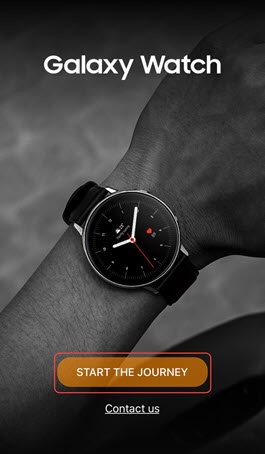
- TapSTART THE JOURNEY.
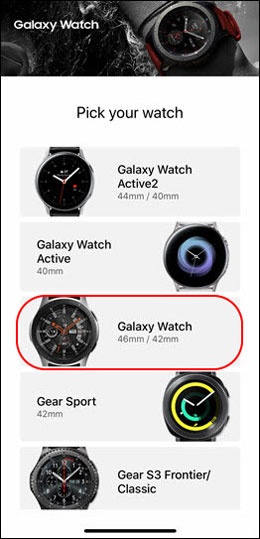
- TapGalaxy Watch 46mm/42mm.
- From the 'Watches spotted nearby' screen, tapGalaxy Watch.
- From the 'Bluetooth Pairing Request' prompt on the companion Iphone, tapPairthen tap theCheckmark icon
on the Galaxy Watch.
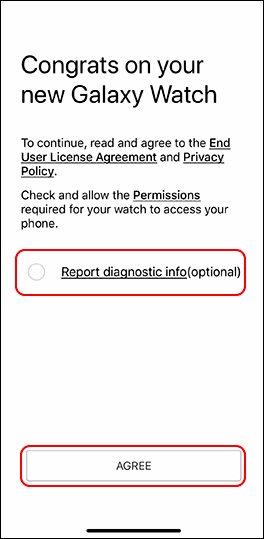
- To continue, review the Privacy Policy and End User License Agreement, select (check) 'Report diagnostic info if desired then tapAGREE.
- If prompted, tap 'Allow' or 'OK' to let the Galaxy Watch send you notifications, access your calendar, or access your contacts.
- TapSign into complete Samsung account setup.If you choose 'SKIP', you can add a Samsung account after setup is complete.
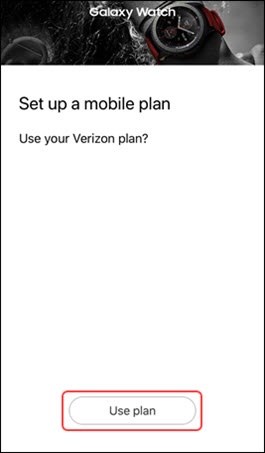
- From the 'Set up a mobile plan' screen, selectUse code.If you choose 'Skip', you can add a cellular plan after setup is complete.
- If prompted, tapOKto allow Galaxy Watch to access your camera.
- Point the iPhone's camera at the QR code below and scan it.The QR code will only work if the Galaxy Watch has been activated on a Verizon mobile number.
- TapUse plan.
- If presented with a 'Tap to connect to the mobile network' message on your watch, tapCONNECT.The watch restarts.This process may take up to 2 minutes.
- Allow a few minutes for service to activate. When complete, tapDone
Continue to use in conjunction with a companion smartphone for maximum functionality. To unpair your companion Apple iPhone and use the Galaxy Watch as a standalone device, reset the watch then set up as a standalone device.
Standalone mode can't be used with Number Share.