Samsung Galaxy Watch - Connect to New Phone
Here's how to connect your existing Galaxy Watch to a new phone.
- The steps below only apply when you need to connect your existing Galaxy Watch to a new Android™ smartphone or Apple® iPhone.®
- For first time setup / activation of a new Galaxy Watch or replacement of an existing Samsung smartwatch, refer to one of the following:
- Ensure the Galaxy Watch is charged and powered on.
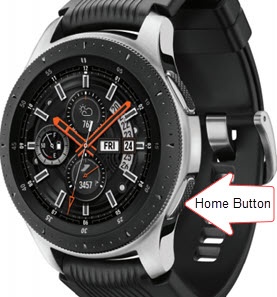
- From the watch screen, press theHome buttonto open the apps screen.
- Tap theSettings icon
.
- Swipe up to scroll to the bottom then tapConnect to new phone.
- If prompted, tap Back Up Data.
- Review the message then tapContinueor theCheckmark icon
.
The watch resets which takes up to 10 minutes. - From the 'Let's go' screen, swipe up then connect to one of the following devices:
- Android smartphone
- Apple iPhone
Connect to a new Android smartphone
- Open theGalaxy Wearable app
on the new Android smartphone.
If necessary, install the app. - TapStart.
- TapGalaxy Watch.If Galaxy Watch is not listed, tapScan again.If prompted, tapAllowand approve the necessary permissions.
- From the 'Devices spotted nearby' screen, tapGalaxy Watch.
- Ensure the passkey matches what's displayed on the Galaxy Watch then tap 'Confirm' or 'Connect' on the smartphone and theCheckmark icon
on the Galaxy Watch.
- If using a non-Samsung Android smartphone to complete setup, tapOKthen tapInstallto allow the Gear Plugin and Samsung Accessory Service to install.
- To continue, review the Terms and Conditions and Privacy Notice on your smartphone then select (check) the following and tapAgree.TapI agree to allto select all.Options may vary by paired smartphone.TapDetailsto review info before continuing.
- Sending of diagnostic data (optional)
- Mapping technologies by HERE
- If prompted, tapAllowfor Location and PlugIn access.
- If prompted to 'Link Galaxy Watch PlugIn with Galaxy Watch' tapOK.
- If prompted, tapSign into complete the Samsung account setup.If you choose 'Skip', you can add a Samsung account after setup is complete.
- If prompted to Restore your watch from backups, do the following:
- TapCheck for backupto retrieve a previous Samsung smartwatch backup then tapNext.If you prefer to set up as new, tapSkip for nowthen tapNext.
- Tap theDropdown menu icon
then select the desired backup file.
- Select the data (e.g., Phone, Messages, etc.) you want to restore then tapRestore.Selected when a checkmark is present.
- From the 'Set up a mobile plan' screen, tap (check)Useprevious planthen tapNext.
- If prompted, tap the desired plan to use.
- TapNext.
Connect to a new Apple iPhone
- Open theSamsung Galaxy Watch (Gear S) app
on your new Apple iPhone.
If necessary, install the app from the App Store. - If prompted with'Galaxy Watch Would Like to Use Bluetooth', tapOK.If necessary, tapSettingsthen tap theBluetooth switch to turn on
.
- TapSTART THE JOURNEY.
- From the 'Pick your watch' screen, tapGalaxy Watch 46mm/42mm.
- If prompted, from the 'Devices spotted nearby' screen, tapGalaxy Watch.
- To continue with the pairing process, tapConnect.
- From the 'Bluetooth Pairing Request' prompt, tapPairon the iPhone then tap theCheckmark icon
on the Galaxy Watch.
- Review the End User License Agreement and Privacy Policy, tap (check)Report diagnostic infothen tapAgree.
- If prompted, tap 'Allow' or 'OK' to let the Galaxy Watch send you notifications, access your calendar, or access your contacts.
- If prompted, tapSign into complete Samsung account setup.If you choose 'Skip', you can add a Samsung account after setup is complete.
- Select (check)Use previous planthen tapNext.
- If prompted, tap the appropriate plan then tapNext.
- If presented, select the desired location permission option:
- Only While Using the App
- Always Allow
- Don't Allow
- If presented, review the info then tapConfirm.
- Allow a few minutes for service to activate. When complete, tapDone