Samsung Galaxy Watch Active2 - Connect to New Phone
Here's how to connect your existing Galaxy Watch Active2 to a new phone.
Connect to a new Android smartphone
- The steps below only apply when you need to connect your existing Galaxy Watch Active2 to a new Android™ smartphone.
- For first-time setup / activation of a new Galaxy Watch Active2 or replacement of an existing Samsung smartwatch, refer to one of the following:
- Ensure the Galaxy Watch Active2 is charged and powered on.
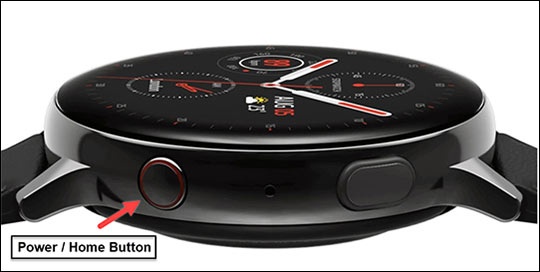
- From the watch screen, press theHome buttonto open the apps screen.
- Double-tap theSettings icon
.
- Swipe up to scroll to the bottom then tapConnect to new phone.
- Review the message then tap theCheckmark icon
.
If necessary, swipe up to scroll to the bottom then tap Back Up Data.The watch resets which takes up to 10 minutes. - From the 'Let's go' screen, swipe up.
- Open theGalaxy Wearable app
on the new Android smartphone.
If necessary, install the app. - TapStart.
- TapGalaxy Watch Active2.If prompted, tapAllowto approve the necessary permissions.
- Ensure the passkey matches what's displayed on the Galaxy Watch Active2 then tap 'Pair' or 'Connect' on the smartphone and theCheckmark icon
on the Galaxy Watch Active2.
- If using a non-Samsung Android smartphone to complete setup, tapOKthen tapInstallto allow the Gear Plugin and Samsung Accessory Service to install.
- To continue, review the End User License Agreement and Privacy Policy then tapAgree.
- TapAllowto let your Galaxy Watch Active2 send and view SMS messages and access your calendar, contacts and call logs.
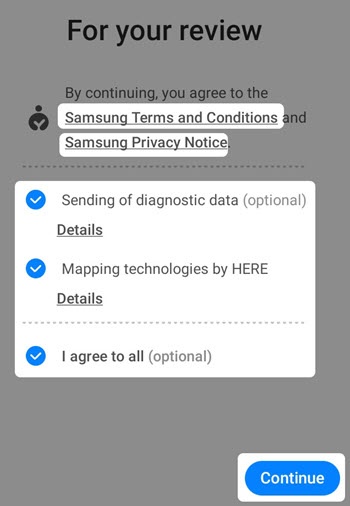
- Tap 'Samsung Terms and Conditions' and 'Samsung Privacy Notice' to review more info then accept (check) each option and tapContinue.TapDetailsfor more info.
- Sending of diagnostic data (optional)
- Mapping technologies by Here
- If prompted, tapOKto link Galaxy Watch Active2 PlugIn with Galaxy Watch Active2.
- If prompted, tapAllowto let your Galaxy Watch Active2 access location, contacts, manage phone calls, access your calendar, access your phone call logs, and send and view SMS messages.
- If prompted, tapSign into complete the Samsung account setup and follow the on-screen steps.If you choose 'Skip', you can add a Samsung account after setup is complete.
- If prompted to Restore your watch from backups, do the following:
- TapCheck for backupto retrieve a previous Samsung smartwatch backup then tapNext.If you prefer to set up as new, tapSkip for nowthen tapNext.If troubleshooting, don't restore the device until all testing has been completed.
- Tap thedropdownthen select the appropriate backup file.
- Select the data (e.g., Phone, Messages, etc.) you want to restore then tapRestore.Selected when a checkmark is present.
- TapConnect to previous network.
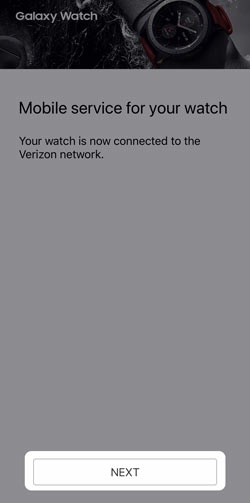
- After mobile service has been set up, tapDonethe 'Mobile service for your watch' screen.The watch restarts.This process may take up to 2 minutes.
Connect to a new Apple iPhone
- The steps below only apply when you need to connect your existing Galaxy Watch Active2 to a new Apple® iPhone®.
- For first-time setup / activation of a new Galaxy Watch Active2 or replacement of an existing Samsung smartwatch, refer to one of the following:
- Ensure the Galaxy Watch Active2 is charged and powered on.
- From the watch screen, press theHome buttonto open the apps screen.
- Double-tap theSettings icon
- Swipe up to scroll to the bottom then tapConnect to new phone.
- Review the message then tap theCheckmark iconIf necessary, swipe up to scroll to the bottom then tap Back Up Data.The watch resets which takes up to 10 minutes.
- From the 'Let's go' screen, swipe up.
- Open theSamsung Galaxy Watch (Gear S) appon the new Apple iPhone.If necessary, install the app.
- If prompted with 'Galaxy Watch Would Like to Use Bluetooth', tapOK.If necessary, tapSettingsthen tap theBluetooth switchto turn on
.
- TapSTART THE JOURNEY.
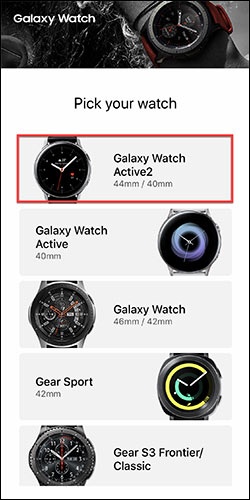
- TapGalaxy Watch Active2.
- To continue with the pairing process, tapConnect.
- From the Bluetooth Pairing Request prompt, tapPairon the iPhone and theCheckmark icon
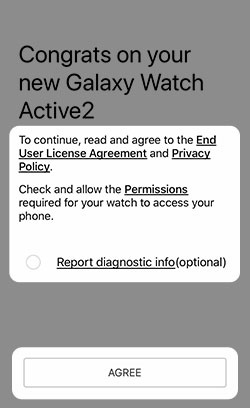
- Review the End User License Agreement and Privacy Policy, check the desired options (e.g., Bixby and other voice services, Report diagnostic info) then tapAGREE.
- Tap 'Allow' or 'OK' to let Galaxy Watch send you notifications, access your calendar, or access your contacts.
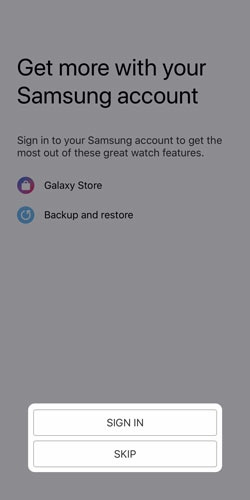
- TapSIGN INto complete Samsung account setup.If you choose 'SKIP', you can add a Samsung account after setup is complete.
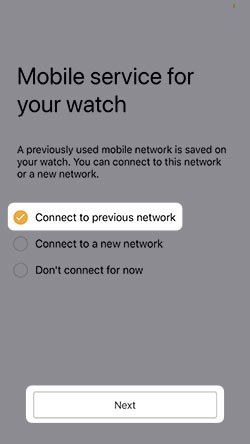
- Select (check)Connect to previous networkthen tapNext.
- TapNEXT.