One Talk T41S/SW, T42S, T46S/SW IP Desk Phones - Activate / Set Up Device
Follow these steps to perform initial activation on your One Talk T41S/SW, T42S or T46S/SW IP desk phone.
- Activation requires a valid US address for E911 functionality.
- Wi-Fi Calls always originate in the U.S., even when you're outside of the U.S.
- Calls to U.S. numbers are not billed (except for 411 or other premium calls).
- Calls to international numbers are billed according to your international long distance plan.
- A soft reset is needed on the desk phone when a new endpoint is added to the One Talk MDN:
- If the desk phone only boots partially and displays "Invalid security certificate", it must be replaced via the CLNR/WFG exchange process. The desk phone will not work under this condition.
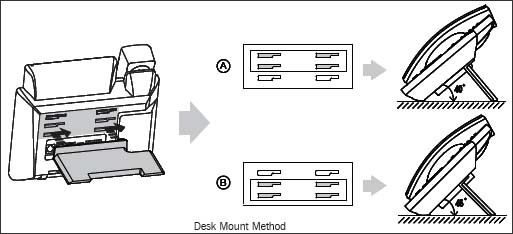
- Attach the desk mount stand.
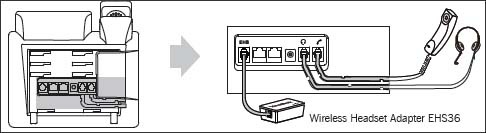
- Connect the headset.The wireless headset adapter and headset are sold separately.
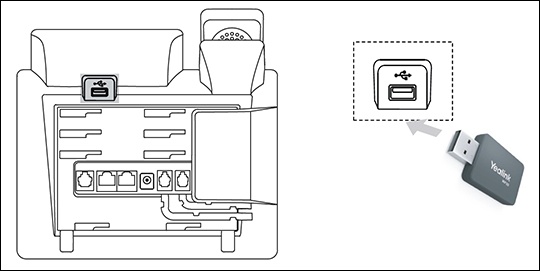
- Connect the optional USB adapter as shown below:The USB port can be used to connect the BT40 Bluetooth USB adapter or WF50 Wi-Fi USB adapter.T41SW and T46SW models include the WF50 Wi-Fi adapter. It can be purchased separately for other models. Bluetooth adapter BT40 can be purchased separately.
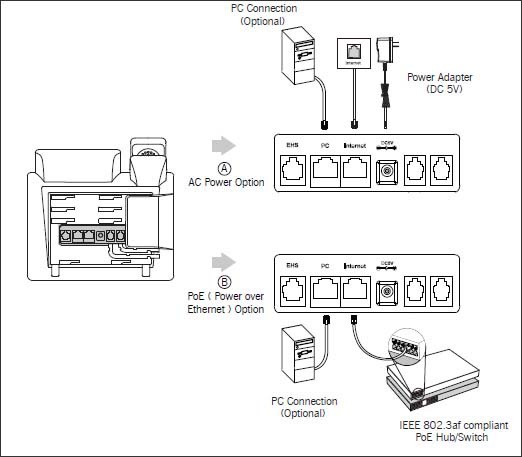
- Connect the power and Ethernet by selecting one of the following options:Contact the IT administrator before selecting the power option.
- AC Power
- PoE (Power over Ethernet)
- The Desk phone begins the initialization process.The process may take up to 15 minutes.The phone displays "Initializing, please wait during this process."
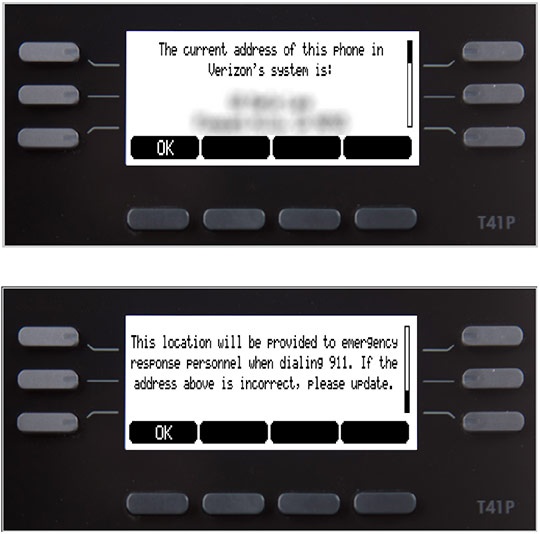
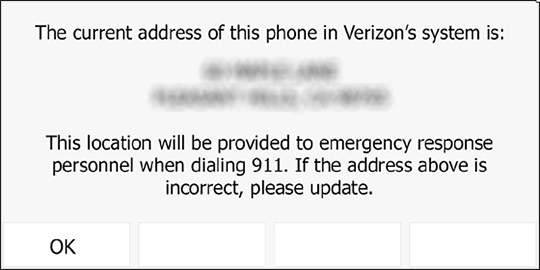
- After successful activation, the 911 notification screen displays. PressOK.To view your 911 address, press theAddress keyto the right of the LCD screen.
- T41S/SW and T42S models:
- T46S/SW models: