One Talk T41S/SW, T42S, T42U IP Desk Phones - Use Intercom Key
Here's how to use the intercom key on your One Talk T41S/SW, T42S or T42U IP Desk Phone.
- If you attempt to use speed dial to dial the extension needed for an intercom call, the phone displays an error message. You must enter the extension manually if no extension is defined in the Intercom line key.
- Intercom calls do not have a standard ring. Customers hear a beep and the intercom call is auto answered.
- Desk phones with the 'Do Not Disturb' feature enabled do not receive intercom calls. If no other desk phones share the One Talk phone number, the Intercom call is directed to Voice Mail.
- If there are additional desk phones sharing the same One Talk phone number (where DND is not enabled), those devices receive the Intercom Call. There is no way tell which desk phone receive the Intercom call if multiple desk phones are sharing the same One Talk phone number.
- Intercom calls are a desk phone call function only. You cannot Transfer an intercom call, conference it or use the call move option on a Mobile App.
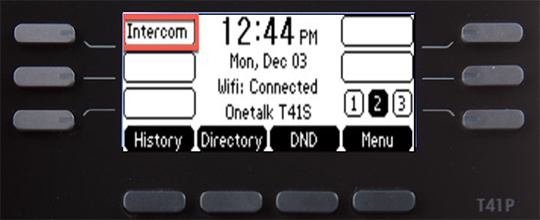
- To use a dedicated intercom line key when the extension is not defined:
- From the Home screen, press theIntercom soft key.
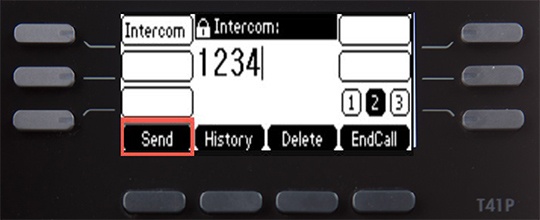
- Enter the target extension for Intercom, then press theSend soft key.
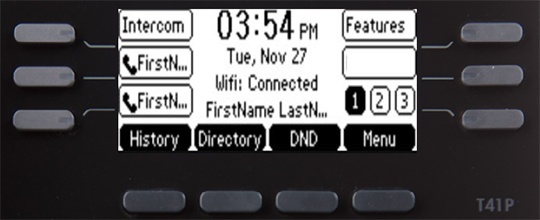
- To use a dedicated intercom line key when the extension is defined:
- From the Home screen, press theIntercom soft key.
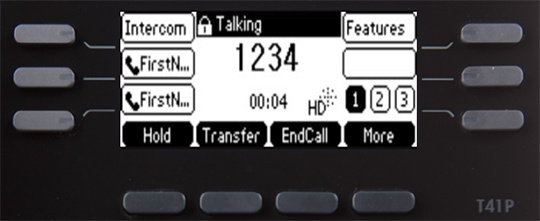
- The intercom is connected.